
Appearance
Dashboard, activity and notifications
Three places tell you what changed and what needs you. The dashboard shows what's happening now, Activity keeps the full history, and Notifications collects the moments an agent is waiting for you.
Dashboard
The dashboard is the first page after you sign in. Three counts sit at the top: Active issues, Open REQs and Live sessions, with how many sessions are waiting on you. Each count opens its list.
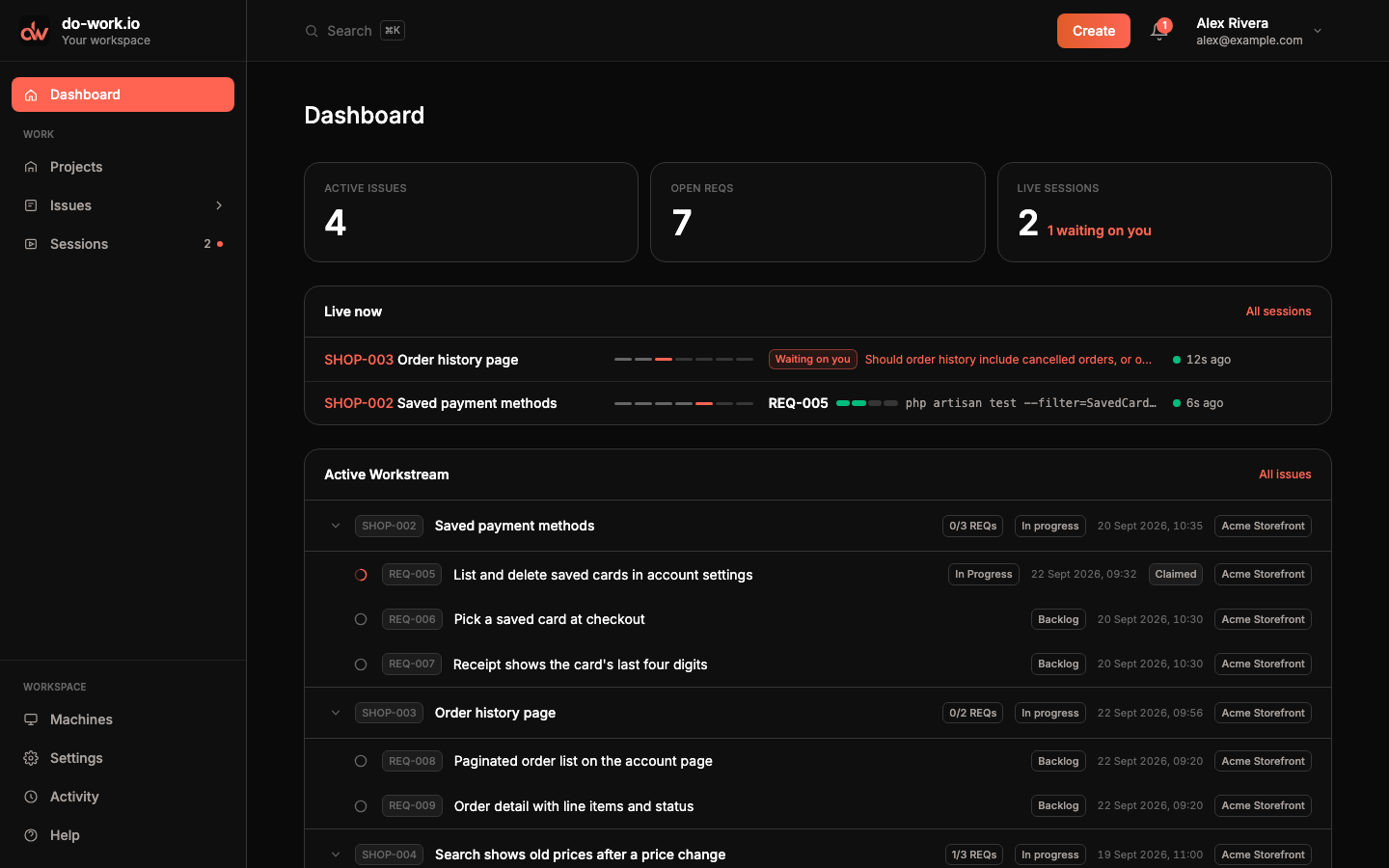
With no projects yet, the dashboard says "Create a project to start tracking issues." and offers Create project. If your email isn't verified, a banner at the top asks you to verify it.
Live now
Live now appears while any session is running or a local agent holds a REQ. Each row shows the Issue, a small phase stepper, what the session is doing and its signal. A session that needs you says Waiting on you with the question. Otherwise the row shows the REQ it holds, its criteria progress and the command it's running. Click the Issue to open the session, or All sessions for the full list.
An agent that only claims a REQ, such as /dw in a terminal, has no session to open. It shows in Live now too, marked Local, with its holder, the REQ, its step and how long ago it last sent a heartbeat. The age turns Stale after 15 minutes of silence. Click the Issue to open the REQ. The same rows appear on the Issue's Runs tab, without the Issue title, and there the REQ opens it.

Active Workstream
Active Workstream lists your open Issues across projects, each with the REQs that aren't archived yet. An Issue row shows its code, title, how many REQs are done, its status, when it changed and its project. Each REQ row shows its status, when it changed and whether it's Claimed. The arrow folds an Issue's REQs away. Click an Issue or REQ to open it, or All issues to go to Issues.
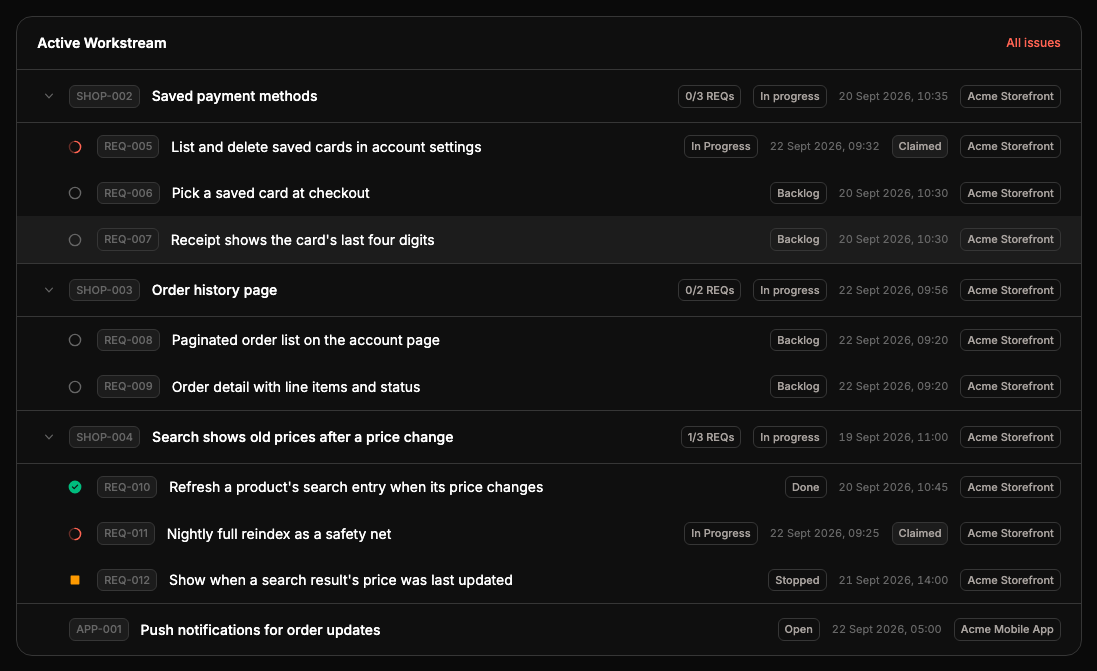
Archived REQs and closed Issues leave the workstream. Find them on Issues and Requirements with the Closed or Archived filters. With no open Issues, the workstream says so and links to Issues.
Activity
Activity in the sidebar lists every event across your projects, newest first: projects and Issues created, REQs created, claimed, marked done and archived, criteria ticked, sessions started, finished or waiting for input, machines paired. Each row has the time, the event, its subject (a REQ, an Issue, a session), a description and the actor, the person whose account or token made the change.
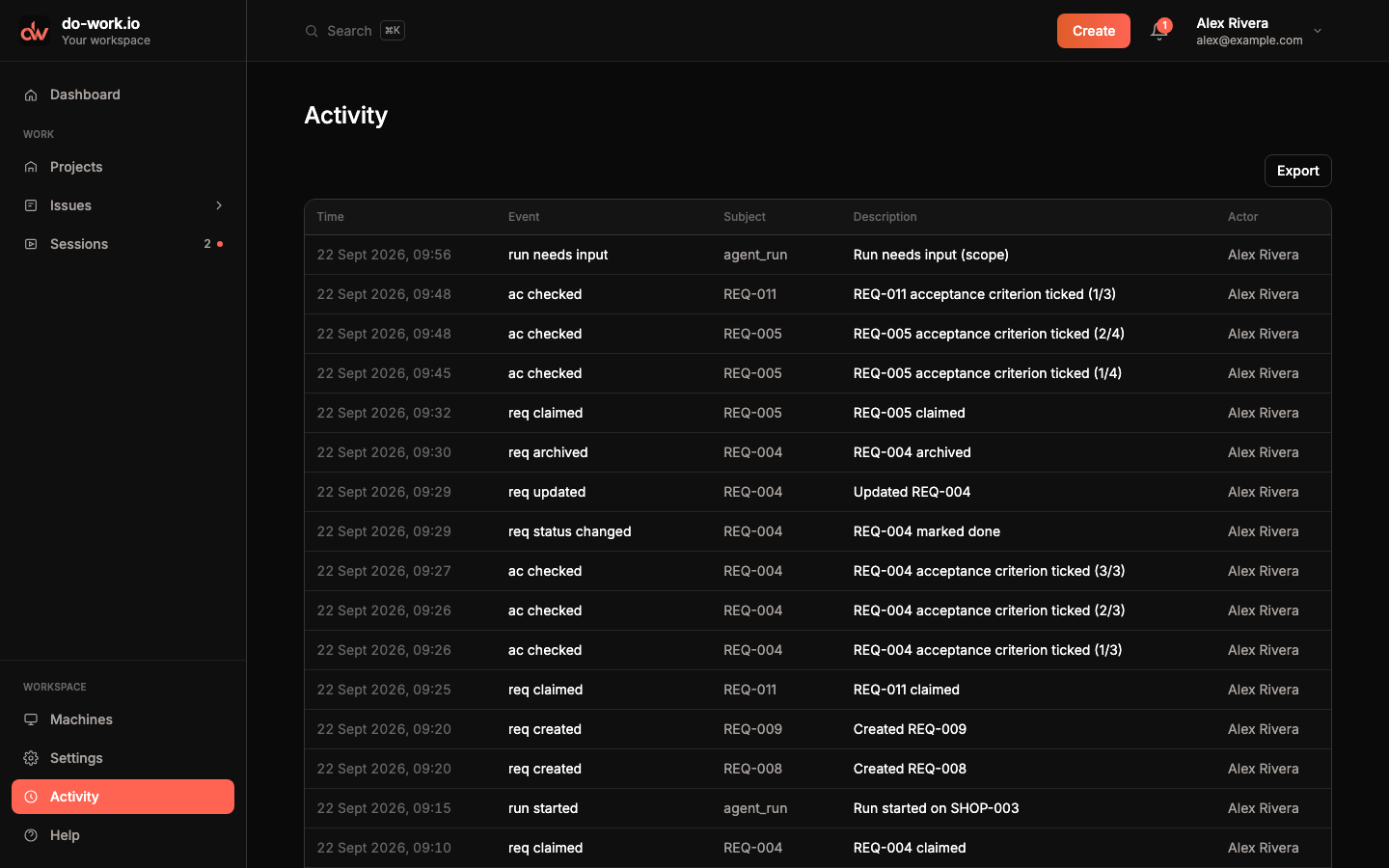
Export downloads the list as activity.csv. A project page shows the same table for that project, and an Issue's Activity tab shows it for that Issue.
Notifications
The bell in the header shows how many notifications you haven't read. Click it, or choose Notifications in the user menu, to open the list. Unread ones are brighter. Click one to open what it points at; that also marks it read.
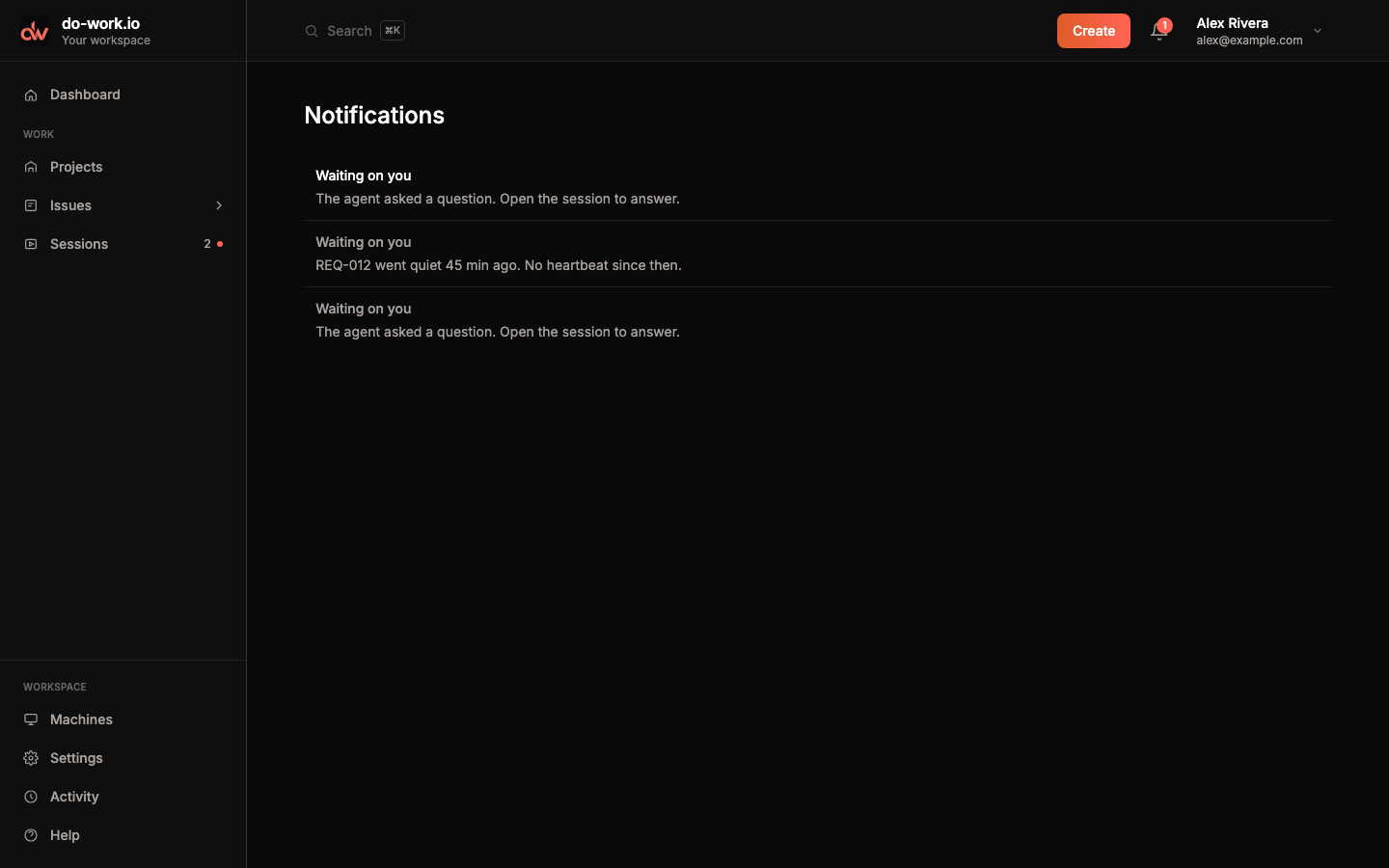
Each notification is a reason to look:
- The agent asked a question. A session stopped at a gate. The notification opens the session so you can answer.
- A REQ went quiet. An agent claimed a REQ and stopped sending heartbeats, for example "REQ-012 went quiet 45 min ago. No heartbeat since then." It opens the REQ.
- The brief is too thin. A session needs more detail before it can plan the work. It opens the session.
- The do-work loop needs you. The skill, running outside the app, stopped for a decision on an Issue or REQ, such as "SHOP-004 needs a scope decision before dw can build." It opens that Issue or REQ.