Appearance
Settings and profile
Settings is where you connect agents and GitHub, mint tokens for agents and the CLI, and sign out. Profile holds your name, email, timezone and password.
Account
The Account panel links to your profile and signs you out. Sign out ends this browser's session and returns you to the landing page. You can also choose Logout in the user menu.

Integrations
Integrations lists the agents and git hosts this workspace can use, one row each. The right of the row says where it stands:
- Connected (green dot). At least one account works.
- Limited (amber dot). An account hit its usage limit. Runs skip it until the limit passes.
- Expired (red dot). An account needs renewing.
- Connect. Nothing is connected yet.
- Coming soon. GitLab and Bitbucket can't be connected yet.
Under the name, a connected row shows who is signed in, or how many accounts there are.
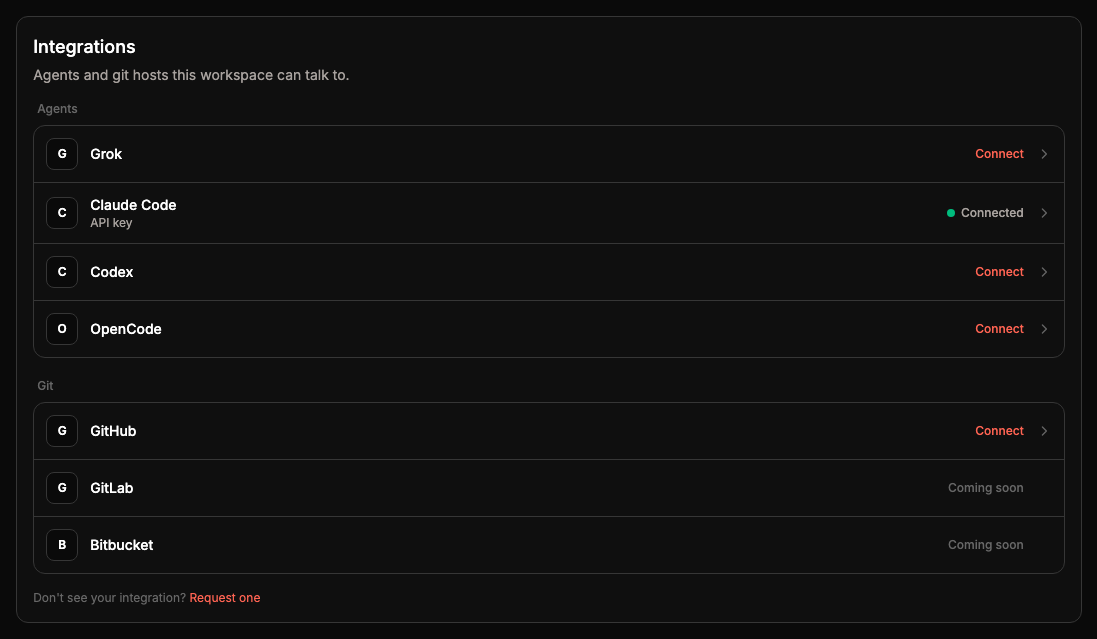
Connect and manage an integration
Click a row to open its dialog. The dialog covers that one integration and nothing else.
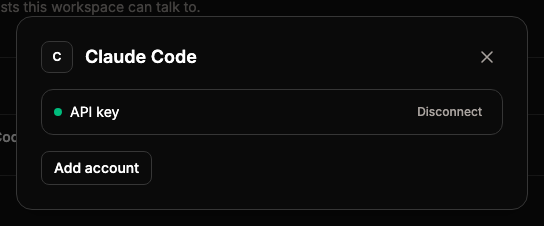
An agent with no accounts opens straight on its connect step. Once it has accounts, the dialog lists them, and each account has its own buttons:
- Disconnect removes the account after you confirm. The confirm says what happens to the runs or projects that use it.
- Reconnect renews an expired sign-in. An expired API key has no sign-in to renew, so disconnect it and add a new key.
- Clear limit puts a limited account back in use when you know the limit is over.
Add account connects another account of the same kind. With two or more healthy accounts, runs use any of them and skip one that hits its usage limit. Back leaves the connect step without connecting.
Each integration connects its own way:
- Claude Code signs in through your machine. Click Open the Claude sign-in page, sign in, and paste the code the page shows back into the dialog. Name the account if you like, then click Connect.
- Codex signs in through your machine too. Click Open the sign-in page and enter the code the dialog shows. Copy code copies it. The account connects by itself once you finish signing in.
- OpenCode takes an API key. Paste it and click Connect.
- Grok shows a link and a code. Open the link, enter the code, and the connection completes. If you'd rather use an xAI API key, paste it under API key fallback and click Save API key.
- GitHub starts from Connect GitHub in its dialog. It sends you to github.com to approve the do-work.io app, then back to Settings. GitHub connects whichever account is signed in on github.com, so to add a second account, switch to it there first and click Add another account. Each GitHub account has Reconnect and Disconnect.
Claude Code and Codex need a paired machine that is online and running the current dowork-runner. With no machine online, the dialog says "Start a machine to connect Claude Code." or "Start a machine to connect Codex." and offers Open Machines. If your machine doesn't pick the sign-in up, most often because its runner is out of date, the dialog says "Your machine hasn't picked this up. Update dowork-runner, then try again." To use an API key instead, paste it under API key fallback in the same dialog and click Save API key.
Once GitHub is connected, the GitHub repository picker on a project lists your repositories. Sessions clone that repository, so a project needs one before a session can start.
Personal access tokens
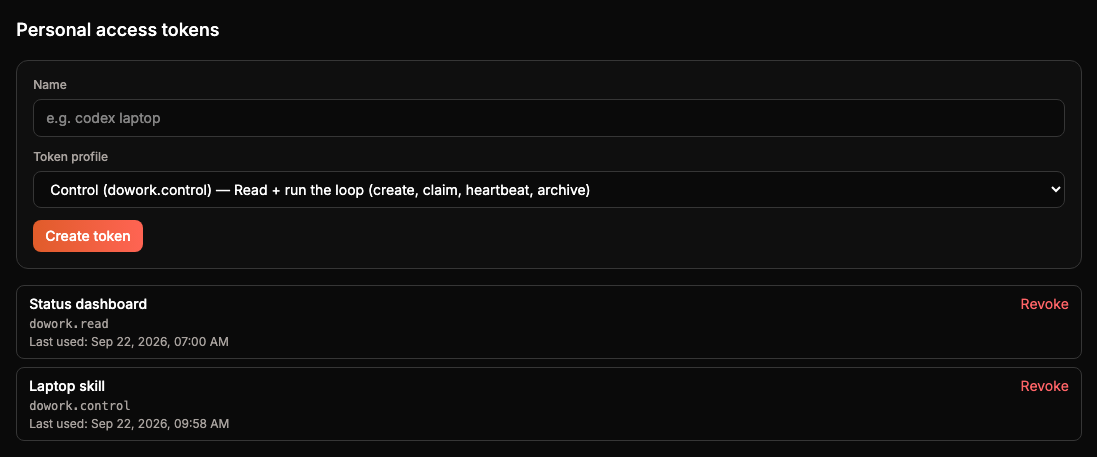
Agents and the CLI sign in with a personal access token (PAT). Give it a Name you'll recognise, pick a Token profile, and click Create token.
| Profile | What it can do |
|---|---|
dowork.read | List and read projects, issues and requirements |
dowork.control | Read, plus run the loop: create, claim, heartbeat, archive |
dowork.admin | Control, plus project and membership management |
The token appears once, right after you create it. Copy token copies it. After you dismiss it you can't see it again, so store it somewhere safe. Never commit it or paste it into chat.
Each token in the list shows its profile and when it was last used. Revoke asks you to confirm. Apps using that token lose access at once. Creating tokens needs a verified email; until then the panel says "Verify your email to mint a token."
Use a token
Use a token gives you a ready-to-paste MCP config. Pick the MCP profile that matches your token and the snippet's URL changes with it. Replace YOUR_PAT_HERE with the token. Below it is a .do-work/config.yml example for the do-work skill. Replace your-project-slug with your project's slug and export the token as DOWORK_IO_PAT.
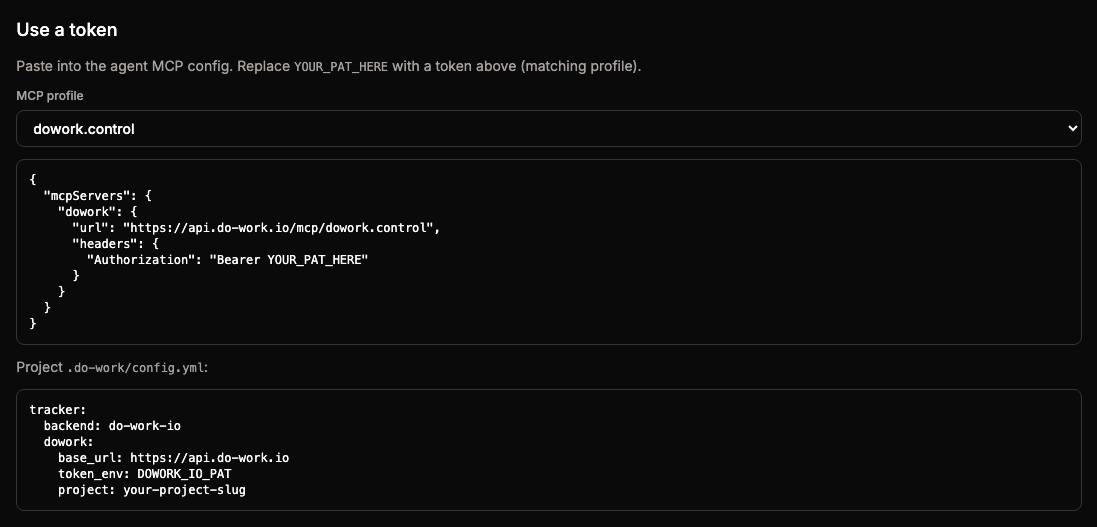
Getting started walks through wiring the skill, and MCP loop covers what agents do with the token.
Profile
Open Profile from the user menu or from Open profile in Settings. Identity holds your Name, Email and Timezone. The timezone sets how the app shows times. Click Save to keep changes.
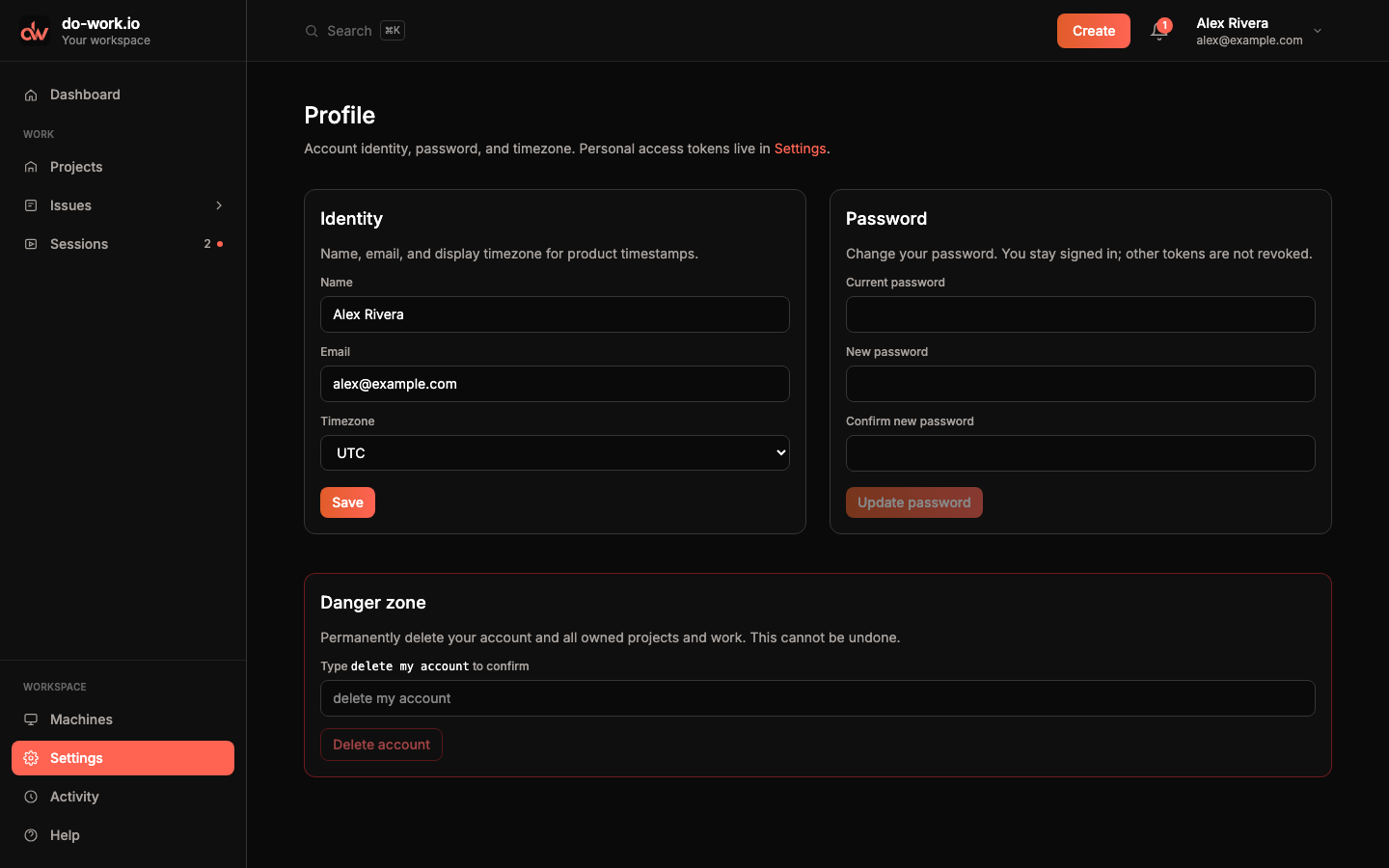
Password changes your password. Type the current one, the new one twice, and click Update password. You stay signed in, and your personal access tokens keep working.
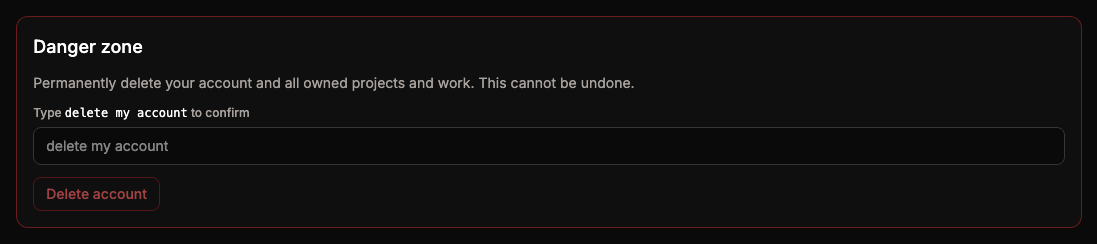
Danger zone
Delete account removes your account along with every project you own and all their work. It can't be undone. To confirm, type delete my account into the field and click Delete account.