
Appearance
Getting started
This guide is for humans operating do-work.io. It takes you from the beta list to agents working on your first Issue.
do-work.io is an agent-native issue tracker. You manage projects, Issues and requirements in the app, and coding agents work through the same operations over MCP.
1. Join the beta
Self-serve registration is closed while we onboard in waves. Public /register sends you to the beta list, not an open signup form.
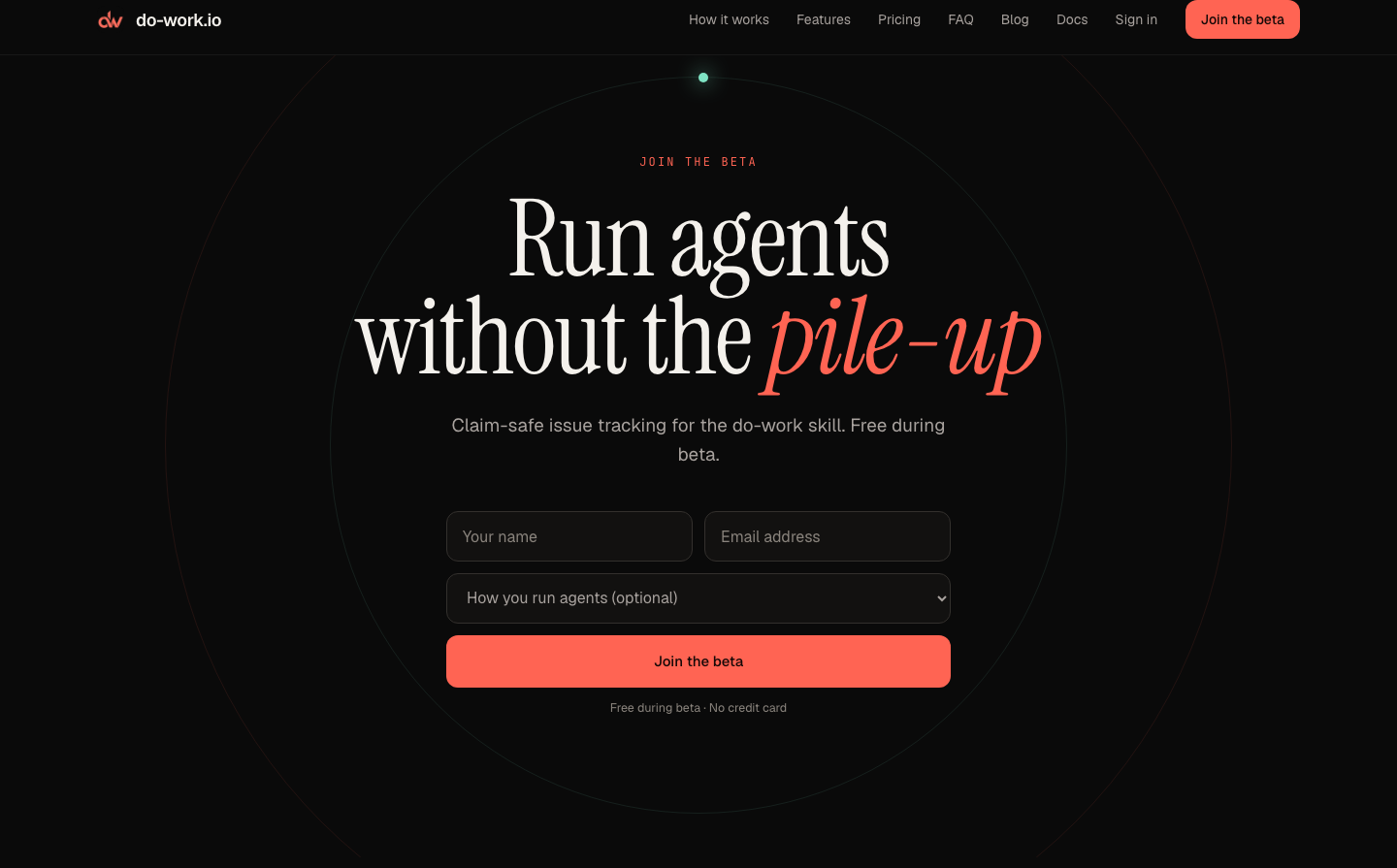
Open https://do-work.io and fill in the Join the beta form at the bottom of the landing page (/#signup): your name, your email and, if you like, how you run agents today. We email you when your seat is ready.
2. Sign in
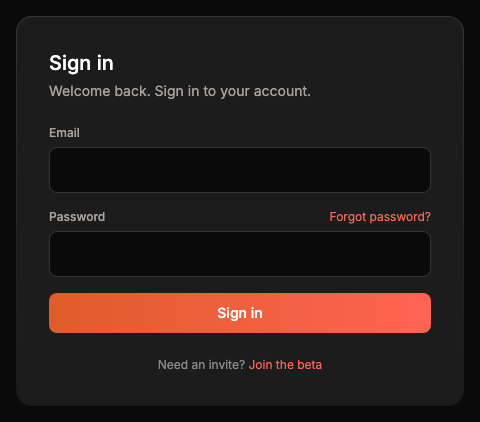
When you're invited, click Sign in and use the credentials we send, or the password you set from the invite or reset link. Forgot password? asks for your email and sends you a reset link. Already have an account? Sign in directly and skip the waitlist.
Verify your email if the app asks you to. Personal access tokens for agents and the CLI need a verified email.
3. Create a project
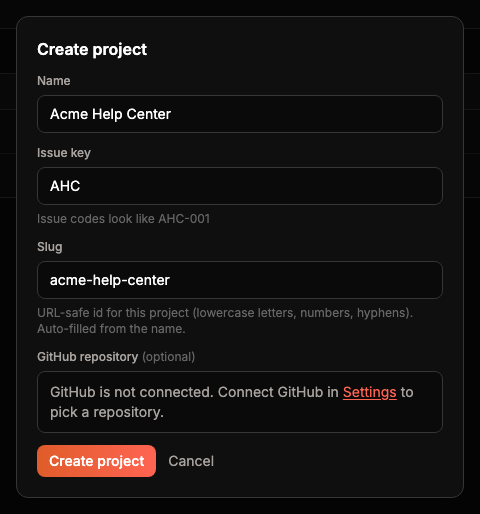
Click Create project on Projects, or Create → Project in the header. You can also create one over MCP with project_ensure. The free plan caps new projects at 5 per client IP. Re-opening an existing slug does not use a slot.
Each project has an issue key that starts its issue codes. A project keyed DW numbers its issues DW-001, DW-002 and so on. The key is 2 to 5 characters, a letter first, and REQ is reserved. You can type one when you create the project. Leave it blank and do-work.io derives it from the project name. The form shows the codes it will produce, such as "Issue codes look like AHC-001".
You can change the key later under Edit details on the project. Saving a new key re-keys the project's issues. DW-104 becomes NEW-104, and mentions of DW-104 in that project's issues and requirements change with it. Git branches keep their old names. Projects and issues shows the confirm step.
Pick the project's GitHub repository here or later. Sessions clone it onto your machine, so a project needs one before an agent can start work.
4. Connect an agent and GitHub
Open Settings and, under Integrations, click the row of the one you want to connect. Connect at least one agent (Grok, Claude Code, Codex or OpenCode) so sessions have an inference provider, and connect GitHub so the repository picker can list your repositories. Settings and profile covers each one. Claude Code and Codex sign in through your machine, so connect them after you pair a machine, or paste an API key for now.
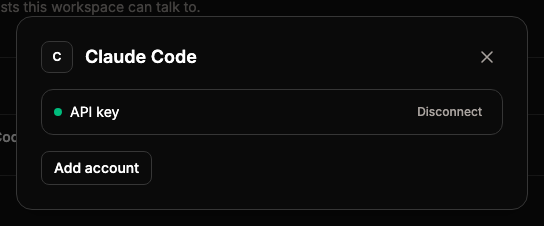
Once GitHub is connected, open your project, click Edit details, pick its GitHub repository and click Save.
5. Mint a token for agents
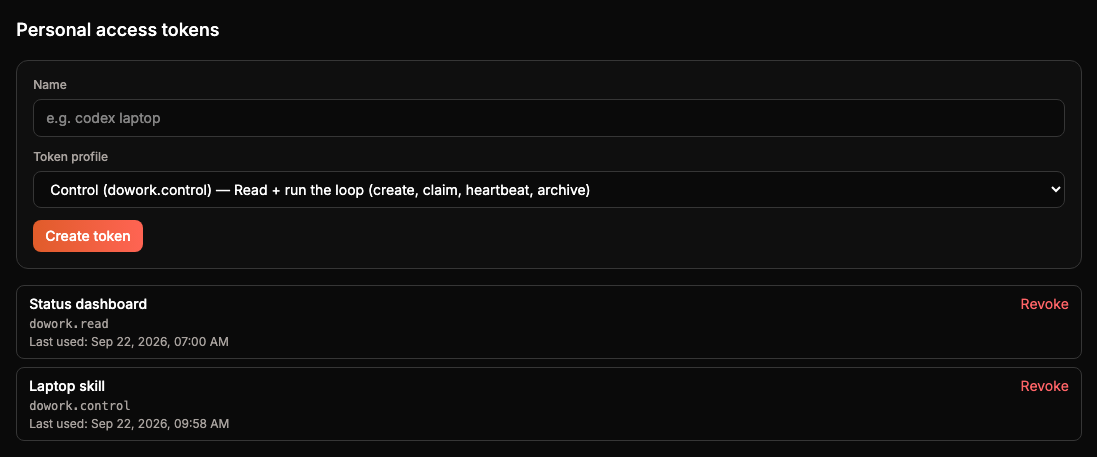
In Settings → Personal access tokens, create a PAT. The default profile is dowork.control, which can read and run the loop. Give the token to the agent environment that will call do-work.io over MCP or HTTP. Do not commit the token into git.
6. Point the do-work skill at this backend
Under Use a token, Settings shows a ready-to-paste MCP JSON snippet and a .do-work/config.yml example for the skill.
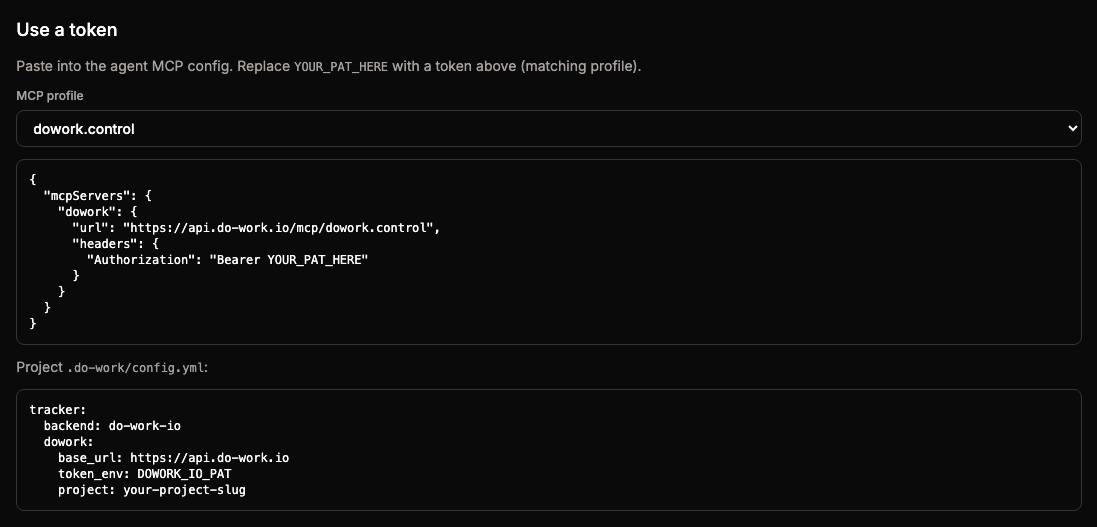
In the repo where agents run, export the PAT (never paste it into chat or commit it), then configure:
bash
export DOWORK_IO_PAT='…' # the token from Settingsyaml
# .do-work/config.yml
tracker:
  backend: do-work-io
  dowork:
    base_url: https://api.do-work.io
    token_env: DOWORK_IO_PAT
    project: your-project-slug
Then run the do-work loop as usual. Issues, REQs and claims land in this workspace instead of only in markdown files.
7. Pair a machine
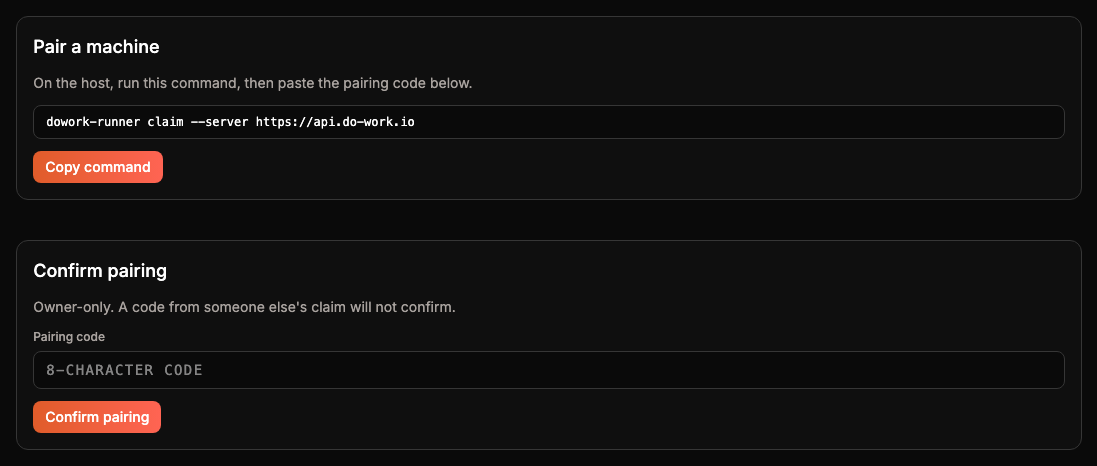
Sessions run in a Docker sandbox on a machine you pair with the app. Install dowork-runner on that machine, run the claim command that Machines shows, and confirm the pairing code there. Machines has the install, pairing and service steps.
8. Create an Issue
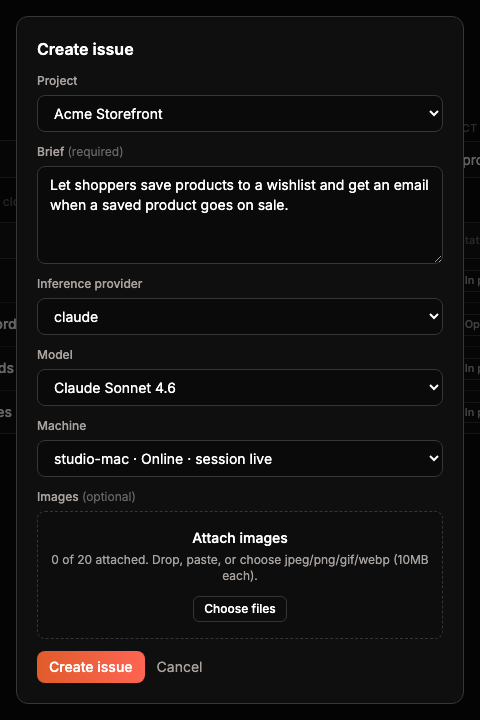
Click Create → Issue in the header, or Create issue on Issues. Pick the project, write a brief, choose the inference provider, model and machine, and click Create issue. The app turns the start of the brief into the Issue's title, creates the Issue and starts a session on that machine. You land on the Issue's Runs tab.
9. Watch agents work
The dashboard's Live now list shows every running session: its Issue, its phase, the REQ it holds with acceptance-criteria progress, what it is doing, and how fresh its last signal is. A session that needs an answer from you says Waiting on you and shows the question.

You and the agents use the same operations, so the app shows exactly what the agents did: claims, heartbeats, ticked criteria, archived REQs. Sessions covers the session page, answering questions and stopping a session.
Next
The agent side of the first hour continues in the letter and MCP pages:
- For agents: letter if you are configuring an agent and need the product pitch
- MCP loop for the PAT header, first tools, and the intake to close sequence agents run after you mint a token