Appearance
Projects and issues
A project is one codebase: a name, an issue key, a status and usually a GitHub repository. Its work comes as Issues. An Issue is one piece of work described in a brief, and it holds the requirements (REQs) that agents claim and finish. This page covers both. REQs have their own page, Requirements and acceptance criteria.
Projects list
Projects in the sidebar lists every project you belong to, with its slug, status, number of Issues, open REQs and when it last changed. Click a column header to sort by it. Type in Search to filter by name, slug or description, or pick a Status. The filters stay in the page address, so a refresh or a shared link keeps them.
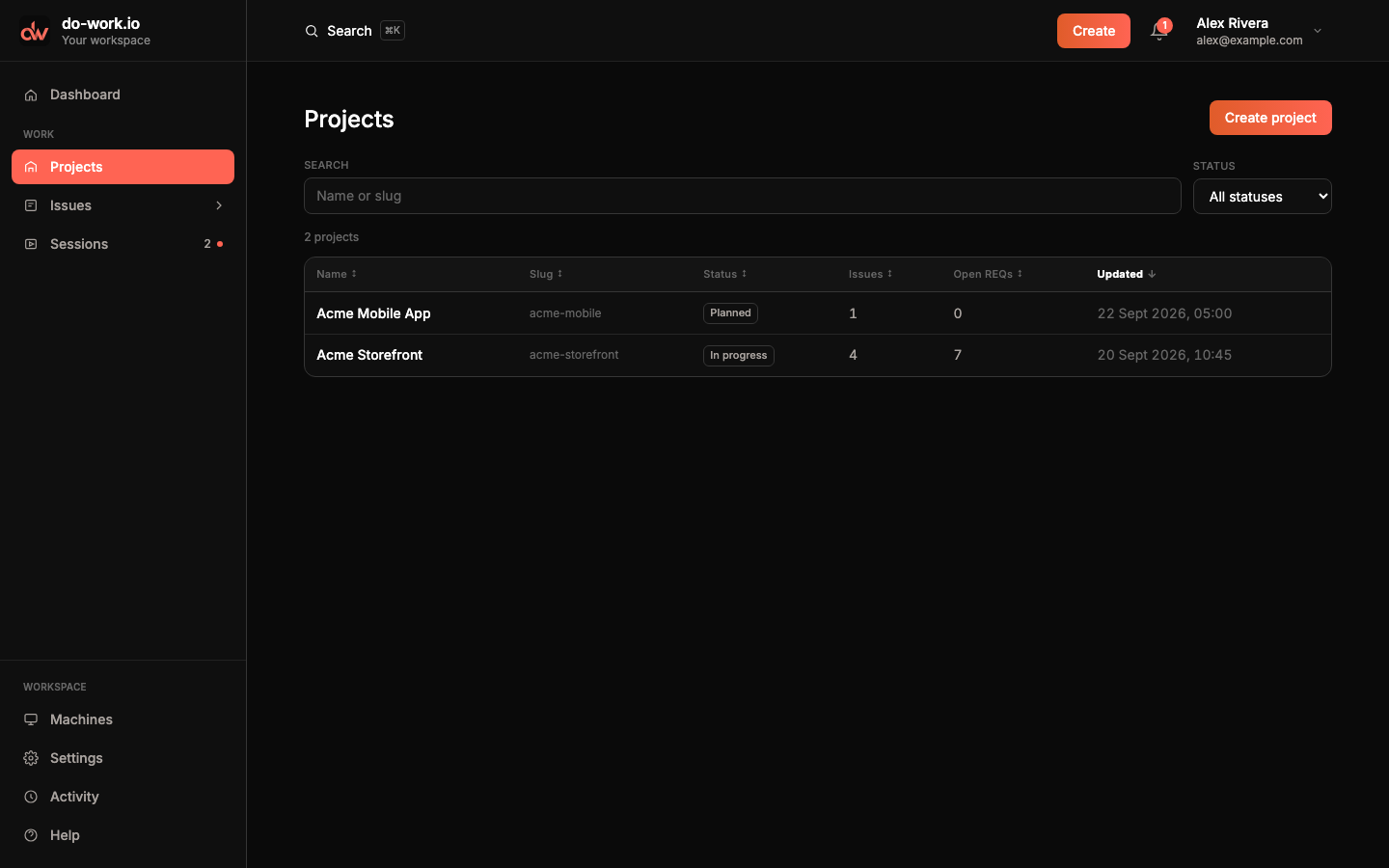
A project's status is one of Backlog, Planned, In progress, Completed or Cancelled. You set it when you edit the project.
Create a project
Click Create project. Type a Name and the form fills in an Issue key and a Slug from it. Change either if you like. The slug is the id the skill's config uses, so keep it to lowercase letters, numbers and hyphens. GitHub repository is optional here. It lists your repositories once GitHub is connected in Settings.
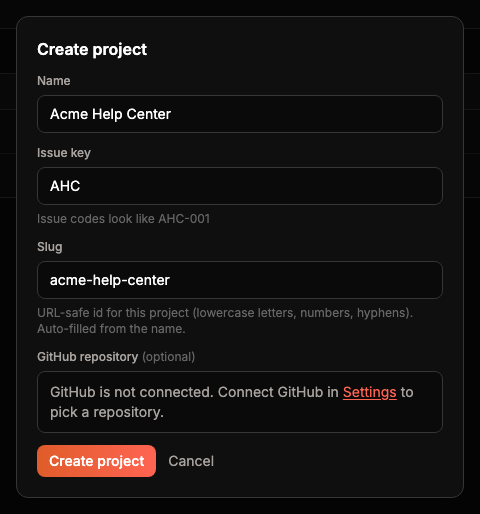
The key rules are in Getting started.
The project page
Click a project's name to open it. The header shows the slug and issue key, the status, the GitHub repository, and when the project was created and last updated. Create issue starts a new Issue in this project. Edit details opens the project form.
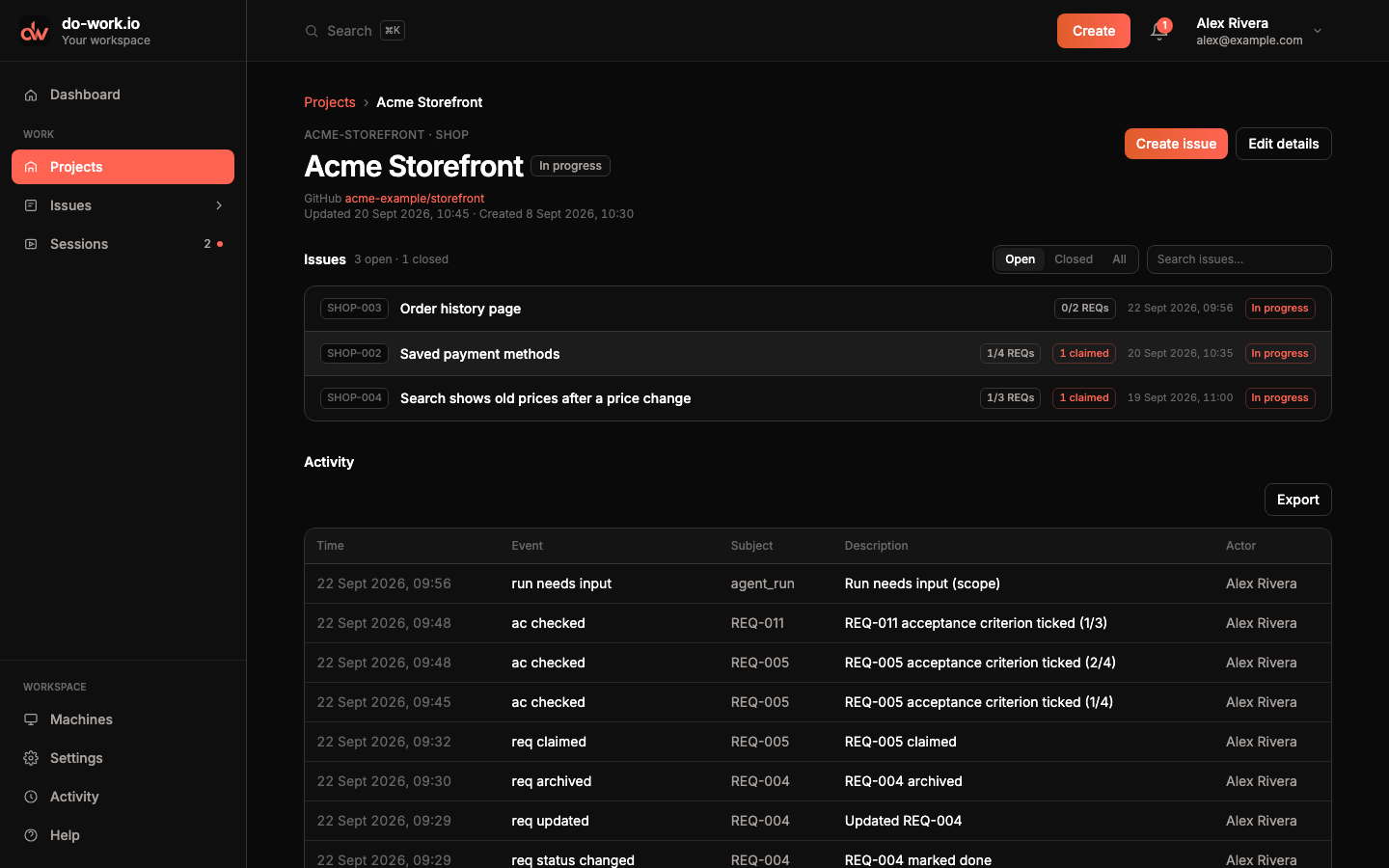
The Issues list shows how many are open and closed. It starts on Open; switch to Closed or All, or search Issue and REQ titles and codes. Each row shows the Issue code, its title, how many of its REQs are done, how many are claimed right now, when it changed, and whether it is Open, In progress or Closed. Below the list, Activity shows every event in the project, newest first. Export downloads it as activity.csv.
Edit a project
Edit details lets you change the name, issue key, status, GitHub repository and description. Save stays greyed out until you change something.
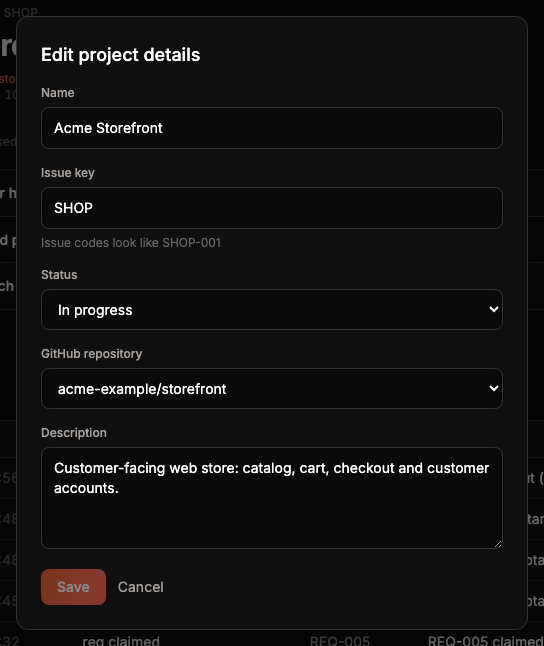
Change the issue key
Type a new key and click Save. Because a new key renames Issues, the form asks first. It names the codes that change and counts the Issues it will rename. Change key and save applies it. Back returns to the form.
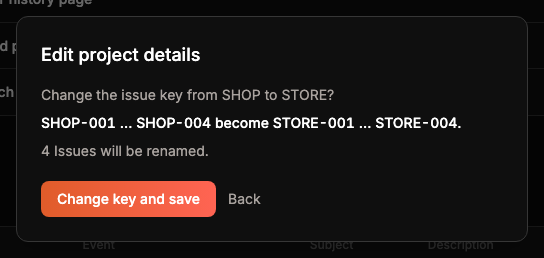
Mentions of the old codes in the project's Issues and requirements change too. Git branches keep their old names.
Issues list
Issues in the sidebar lists Issues across all your projects. It opens on Open; use Closed or All for the rest. Narrow it with Search (title or slug), Project, REQ status and Claim (claimed or unclaimed REQs). The line above the table counts what you're looking at and how many Issues are open and closed in total.
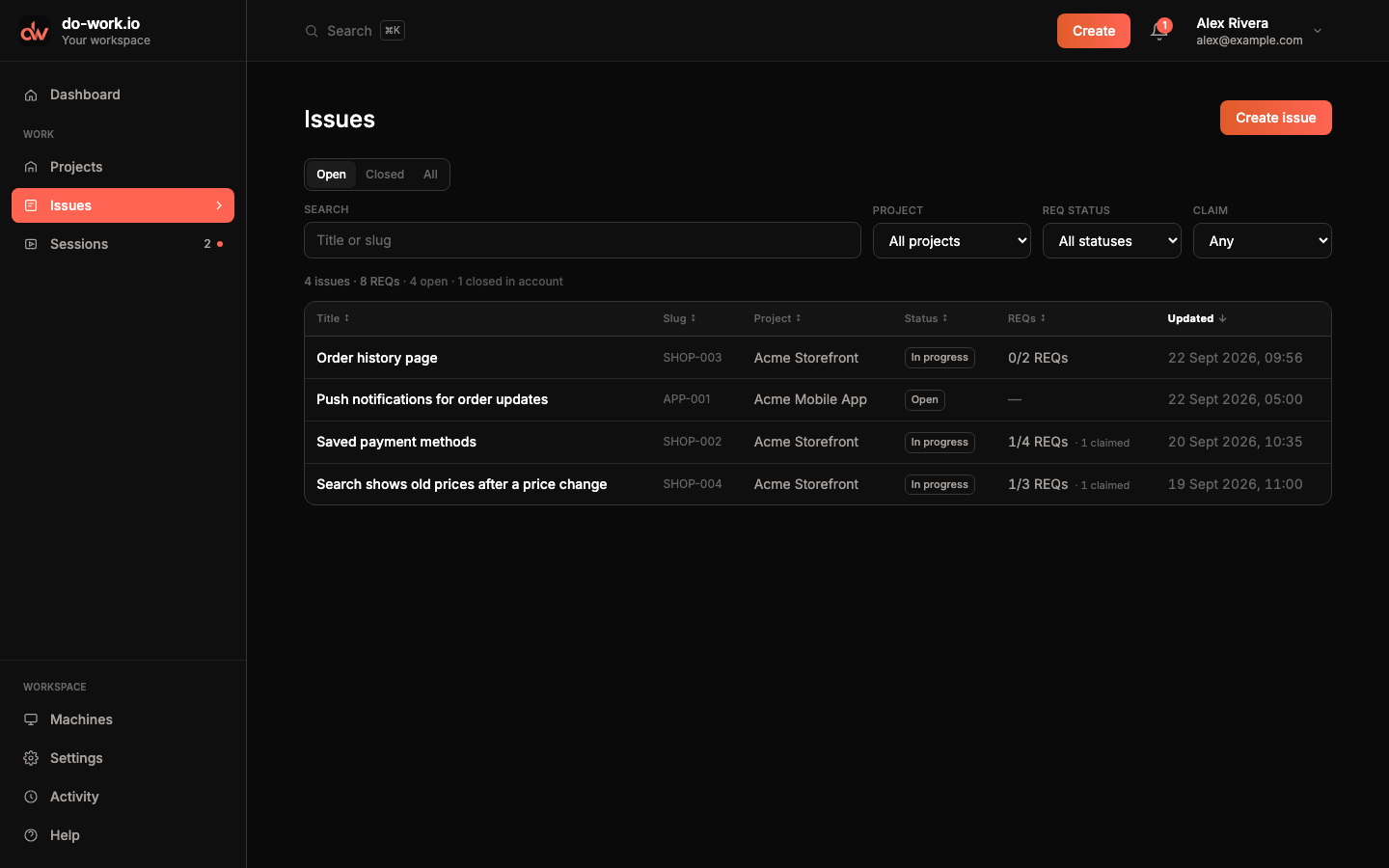
An Issue's status is Open until work starts. It turns In progress once a session has run on it or any of its REQs is in progress, done or archived, and Closed when you close it. The Issue you opened last is marked Just left so you can find your place.
Create an Issue
Click Create issue, or Create → Issue in the header. Creating an Issue in the app also starts its first session, so the form asks for everything a session needs.
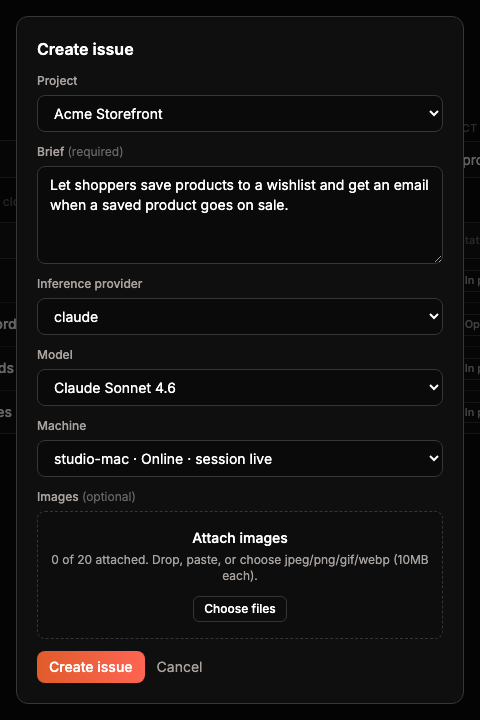
- Project defaults to the one you're in.
- Brief is the only text you write. The app uses its opening words as the title, and you can edit the title later.
- Inference provider and Model choose the agent. The list shows the agents you connected in Settings.
- Machine lists your paired machines and picks an online one with a free slot. With no paired machine the form links you to Machines instead.
- Images are optional: up to 20 jpeg, png, gif or webp files, 10MB each. Drop, paste or choose them.
Create issue creates it, starts the session and takes you to the Issue's Runs tab. If the session can't start, the Issue still exists and the Runs tab says why.
The Issue page
Open an Issue from any list. The title sits at the top with when it was created and last updated. The main column has tabs, and the right rail has Quick Actions and Properties.
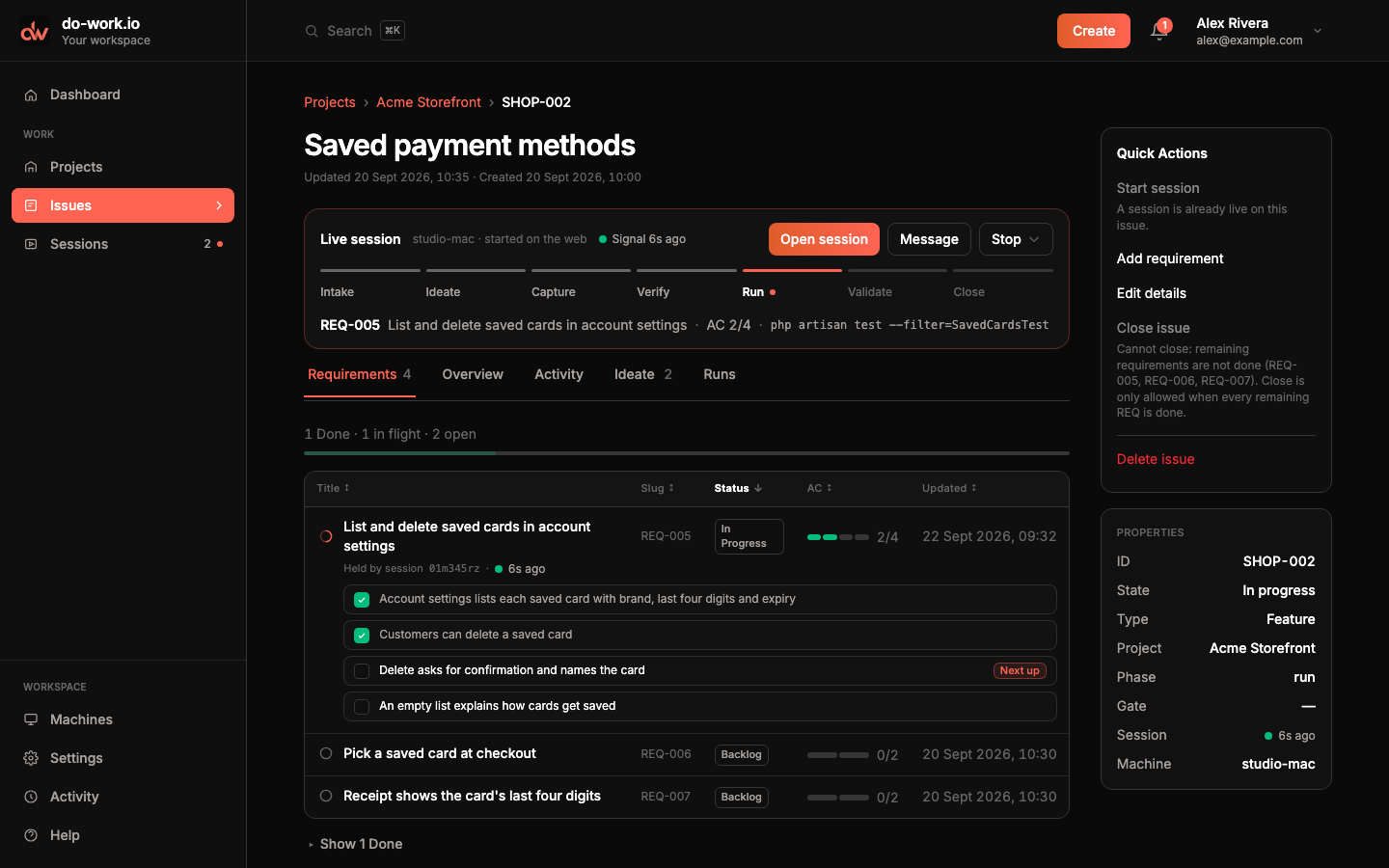
The Requirements tab opens first. A progress line counts REQs that are done, in flight and open. The table lists each REQ with its status and how many acceptance criteria are ticked. A REQ that a live session holds opens inline to show which session holds it and its criteria, with Next up on the first one left. Other claimed REQs show who claimed them and how long ago. Done REQs fold away under Show 1 Done. Click a REQ to open it.
Live session strip
While a session is running on the Issue, a strip above the tabs shows it. You see the machine, where the session started (the web or a terminal), and how recent its last signal was. Below that are the phase stepper and the REQ the session holds, with its criteria count and what it is doing now. If the agent asked you something, the strip says Waiting on you with the question.
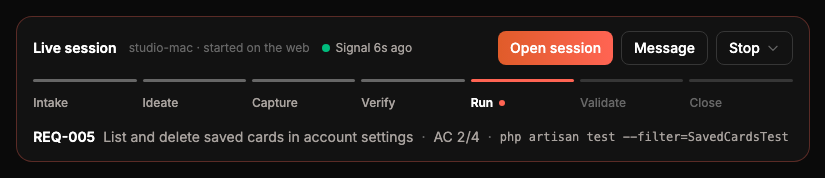
Open session goes to the session page. Message opens the Runs tab with the cursor in the message box. Stop offers to finish the current REQ and then stop, or to stop now. Sessions explains both.
When no session is live, the strip becomes one line with the last run's status. A failed run also shows why it failed and a Retry button.
Quick Actions and properties
Quick Actions appear while the Issue is open.
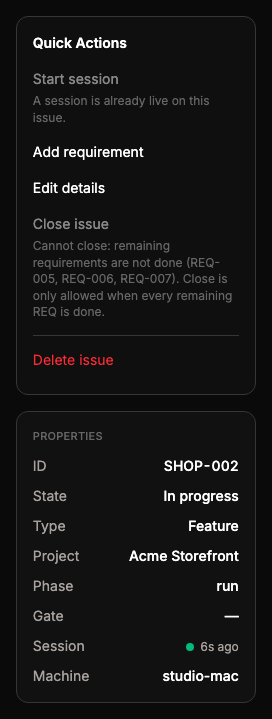
- Start session starts a new session on this Issue. It is greyed out while one is already live. See Start a session.
- Add requirement opens the requirement form for this Issue.
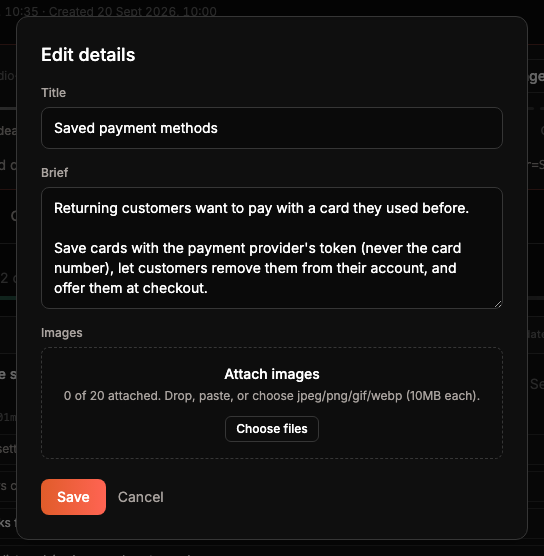
- Edit details changes the title, the brief and the images.
- Close issue opens a dialog where you pick a paired machine. Okay go runs the close on that machine. It stays greyed out, with the reason underneath, until every remaining REQ is done, no session is live, and the Issue's branch or pull request is on GitHub.
- Delete issue asks you to confirm, then deletes the Issue and its requirements for good.
Properties show the Issue's ID, state, type, project, current phase and gate. While a session is live they add its signal and machine. When a session has opened a pull request or recorded a walk-through video, links to them appear here too.
Overview
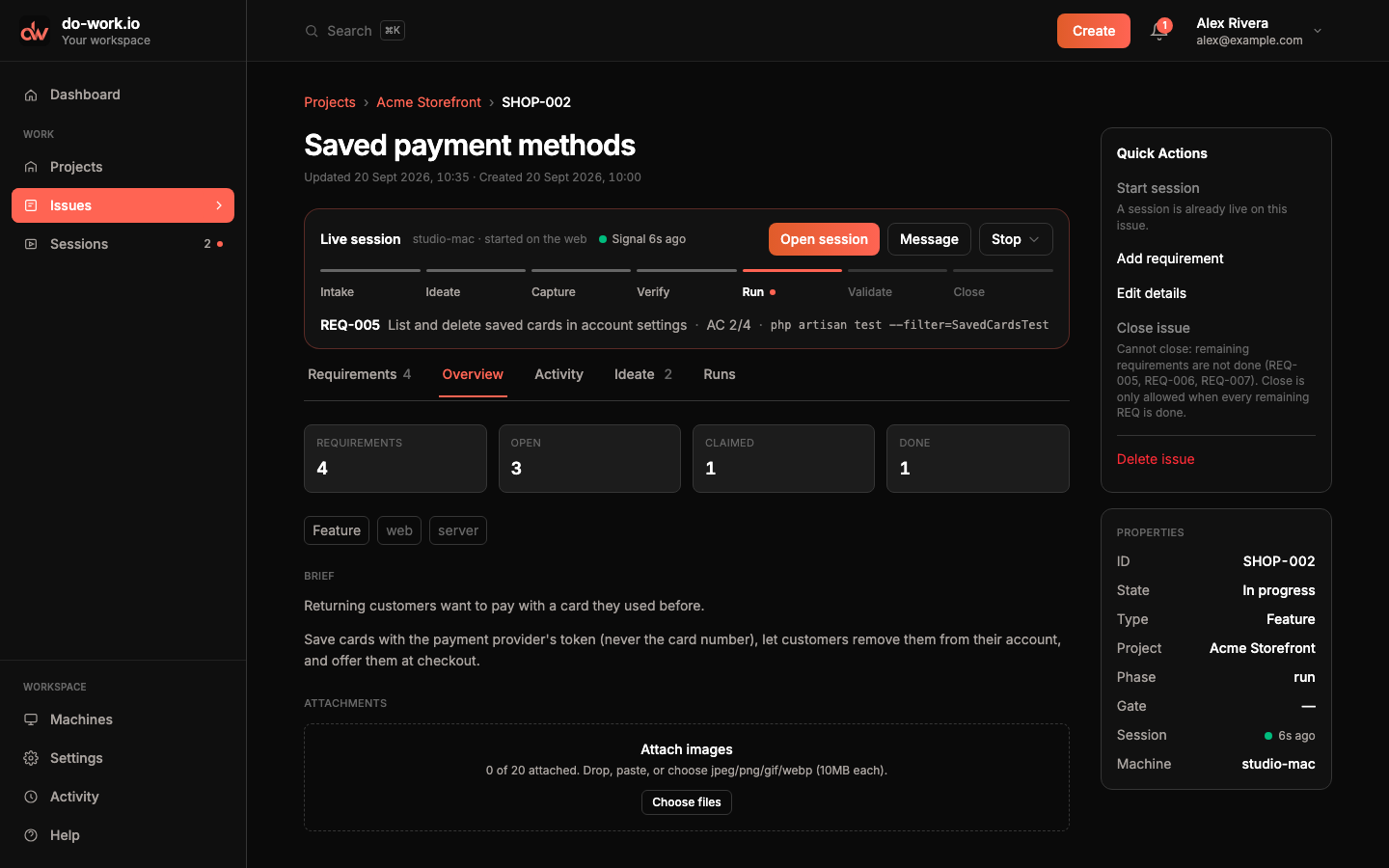
Overview counts the Issue's requirements (total, open, claimed, done), shows its type and the layers it touches, and shows the brief. A long brief is cut short with Show full brief. Attachments takes up to 20 images: drop them, paste them or click Choose files.
Activity
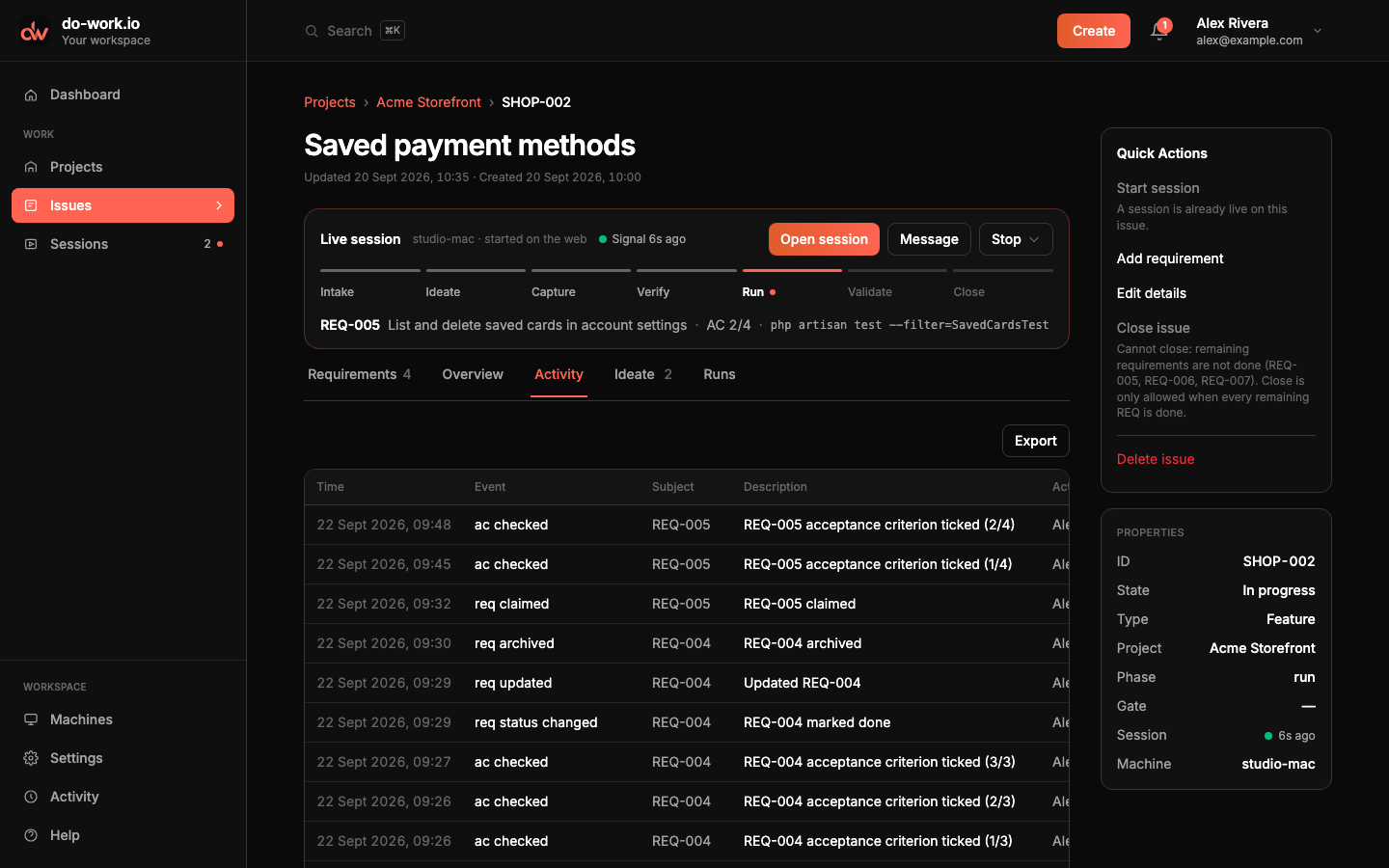
Activity lists every event on this Issue and its REQs: created, claimed, criteria ticked, marked done, archived. Export downloads the list as activity.csv.
Ideate
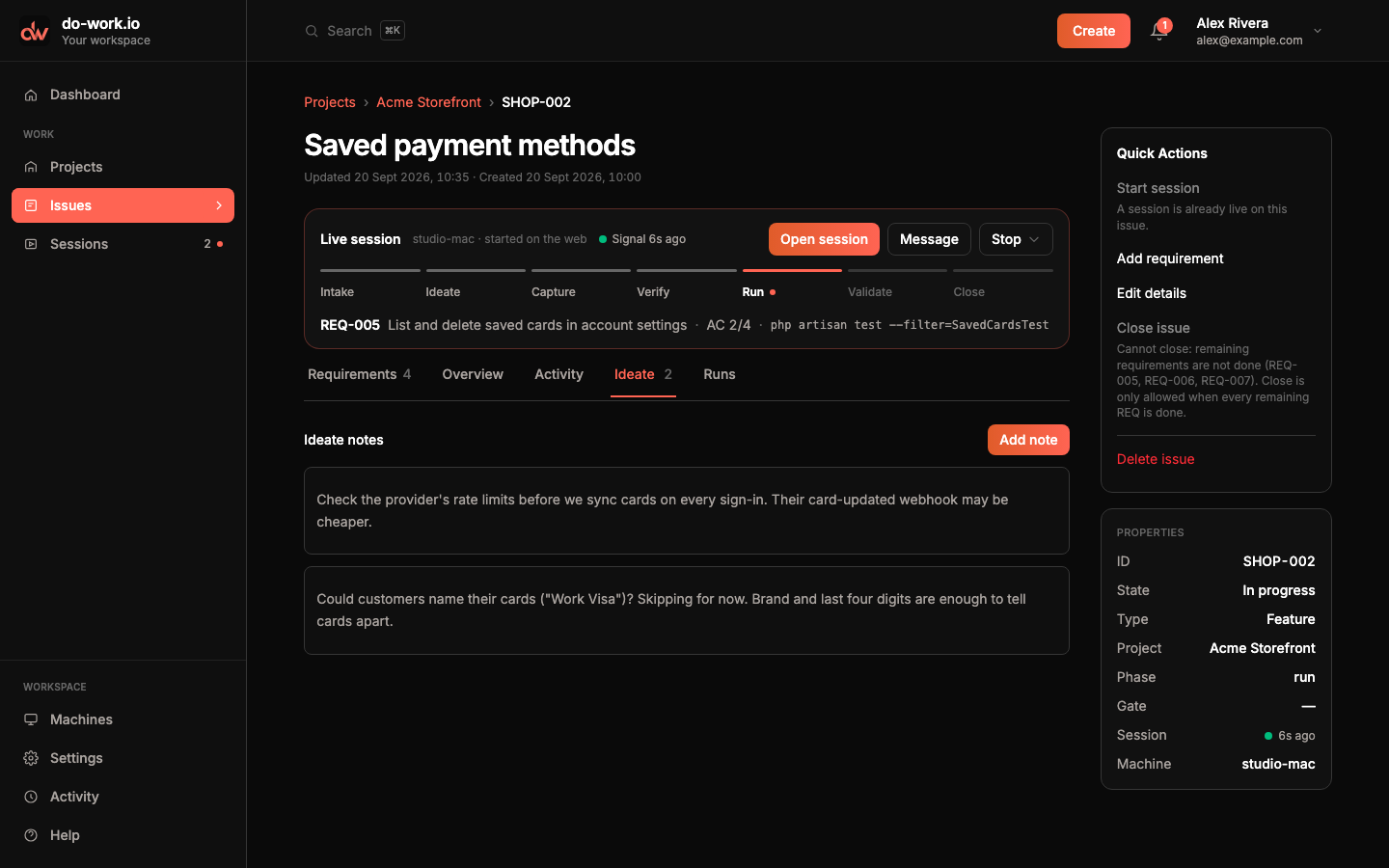
Ideate collects notes about the Issue, newest first. Agents add them while exploring the problem, and you can too with Add note.
Runs
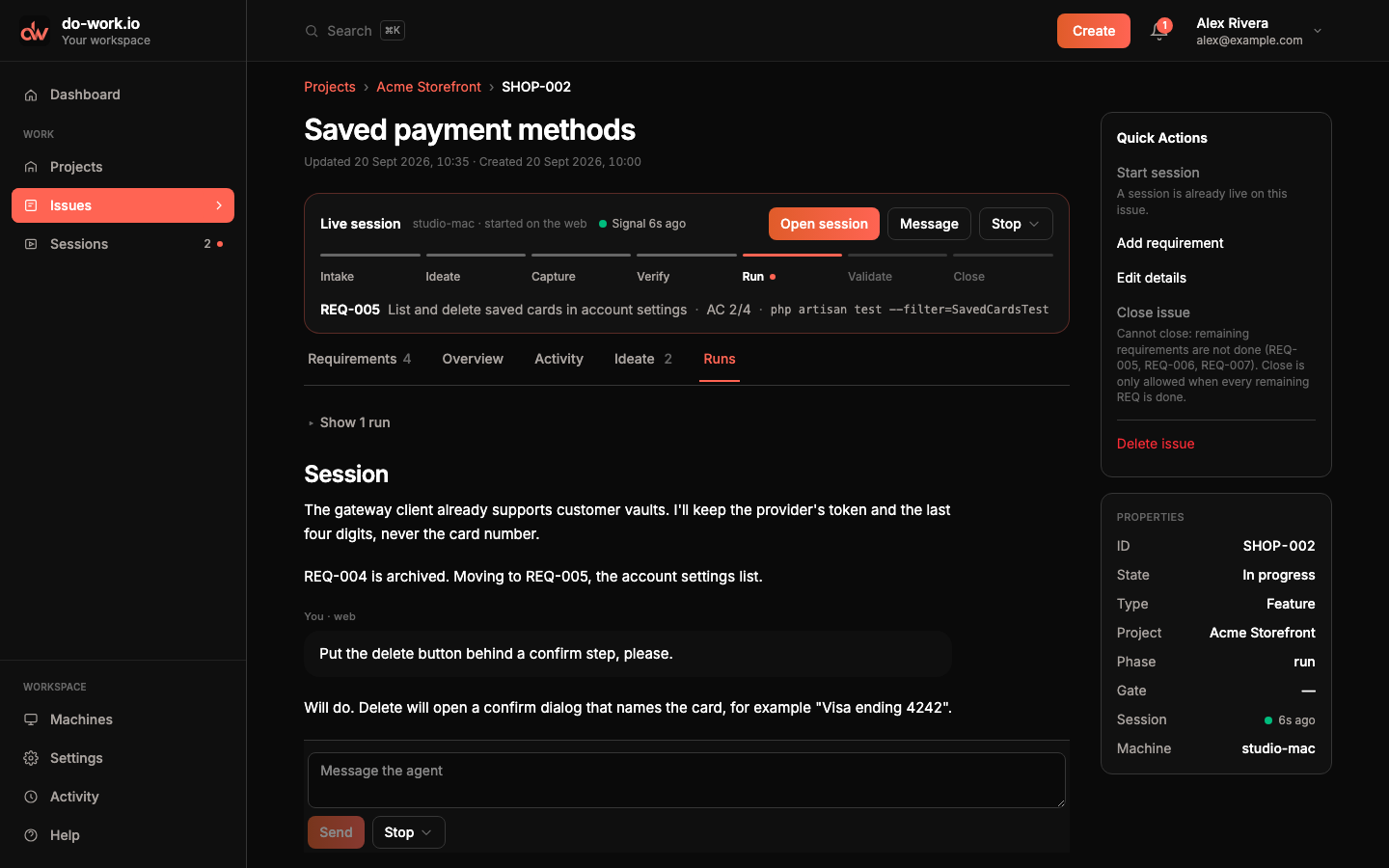
Runs lists every session that has run on this Issue, with its status, when it started, the machine and, for failed runs, the reason. Click a row to open it below the table. The open session shows its transcript and, while it runs, a box to message the agent. With a session open, the table folds away behind Show 1 run.
Close
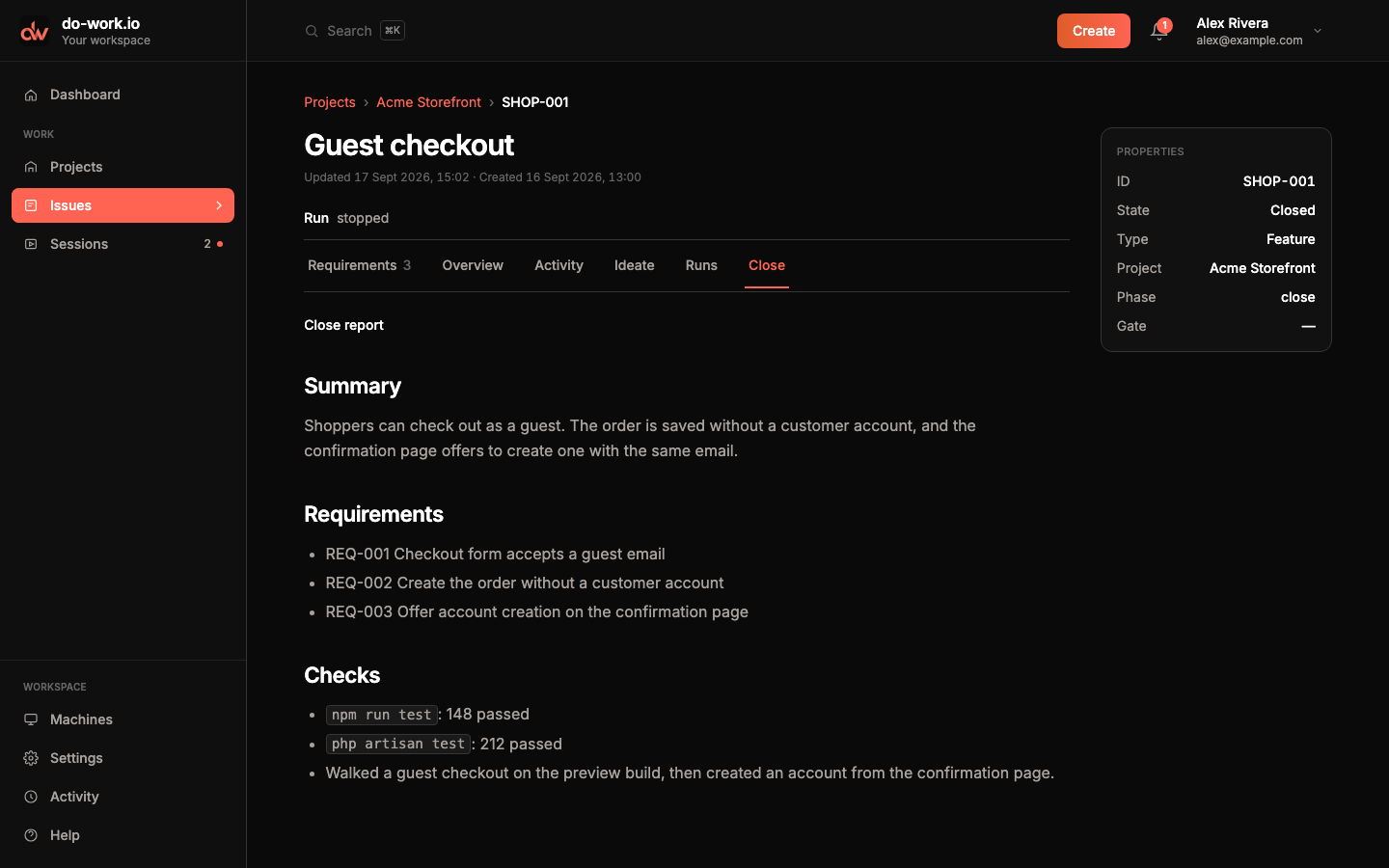
Closed Issues get a Close tab with the close report the agent wrote: a summary, the requirements it finished and the checks it ran. Screenshots attached as evidence appear under it.
Edit an Issue
Edit details in Quick Actions opens a form with the Issue's Title and Brief, plus the image drop zone. Save keeps your changes.