Appearance
Sessions
A session is an agent working on one Issue in a Docker sandbox on one of your machines. The app also calls it a run. A session moves the Issue through seven phases: Intake, Ideate, Capture, Verify, Run, Validate and Close. On the way it claims REQs, ticks their criteria, archives them, and stops to ask you when it needs a decision.
Sessions list
Sessions lists the sessions in your projects. It opens on Live. The number next to Sessions in the sidebar counts live sessions, and a dot means one is waiting on you.
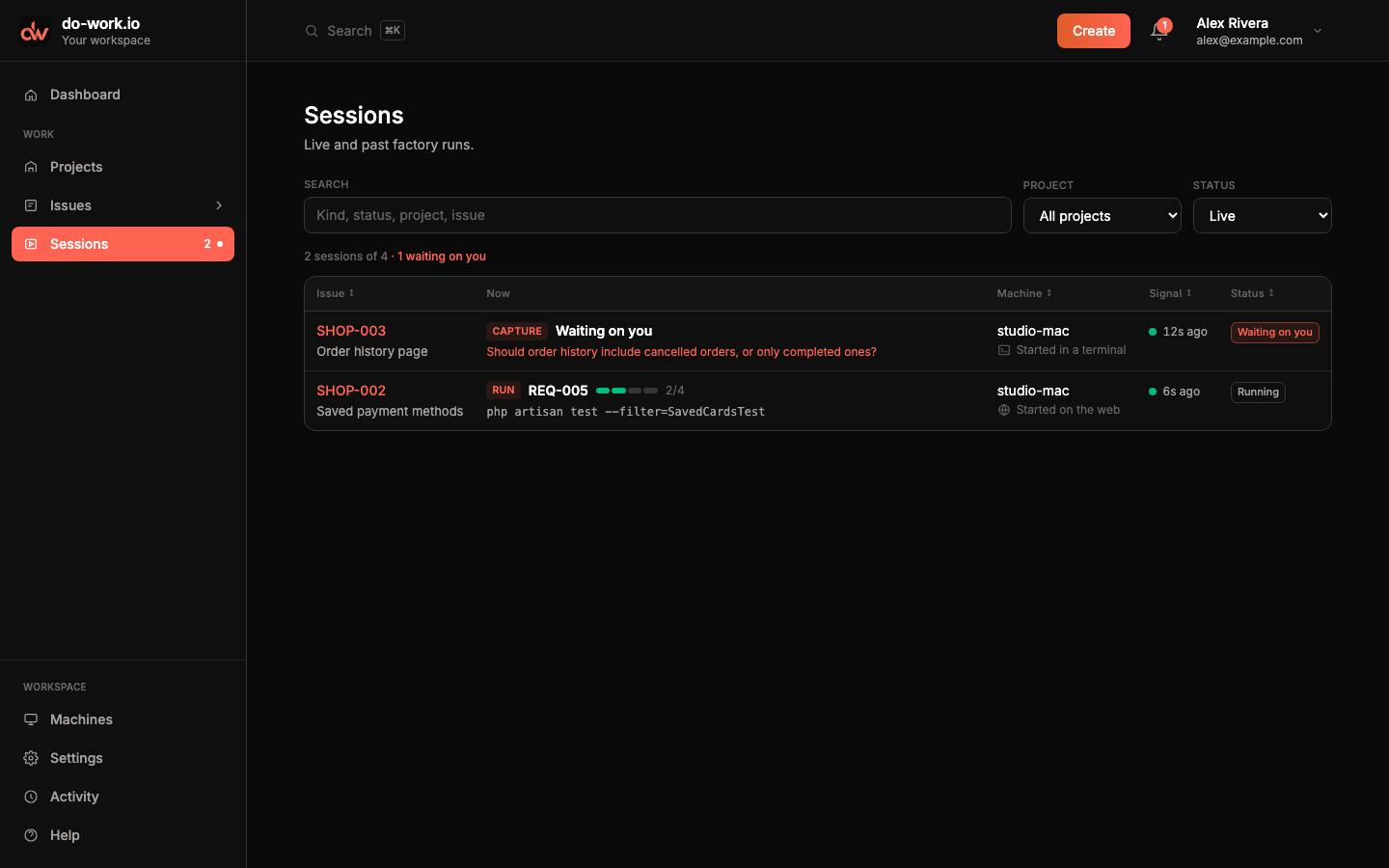
Each row shows what the session is doing now. The phase comes first, then either Waiting on you with the agent's question, or the REQ it holds with its criteria progress and the command it is running. Machine shows where it runs and whether it was started on the web or in a terminal. Signal shows how long ago the machine last reported on it. The dot is green under 30 seconds, amber up to 90 seconds, and grey once the session has gone stale or ended.
Filter with Search, Project and Status.
Past sessions
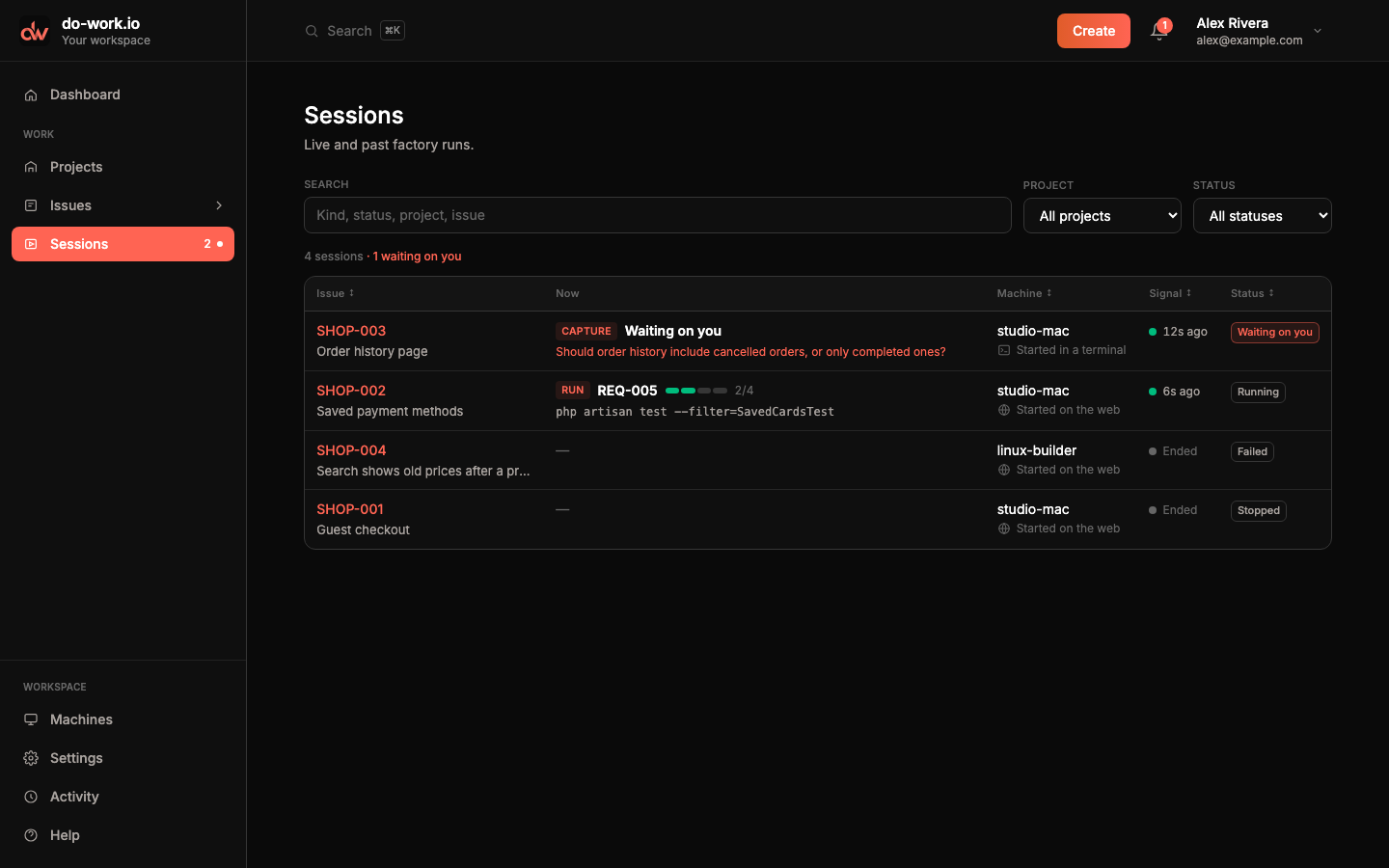
Set Status to All statuses to add stopped and failed sessions, or pick one status: Starting, Running, Stale, Stopping, Stopped or Failed. When nothing is live, the empty list tells you how many past sessions are under All statuses.
Start a session
Creating an Issue in the app starts its first session. To start another, open the Issue and click Start session in Quick Actions. On On a machine, pick the inference provider, the model and the machine, then click Okay go. Each machine in the list says whether it is online and how many of its slots are free.
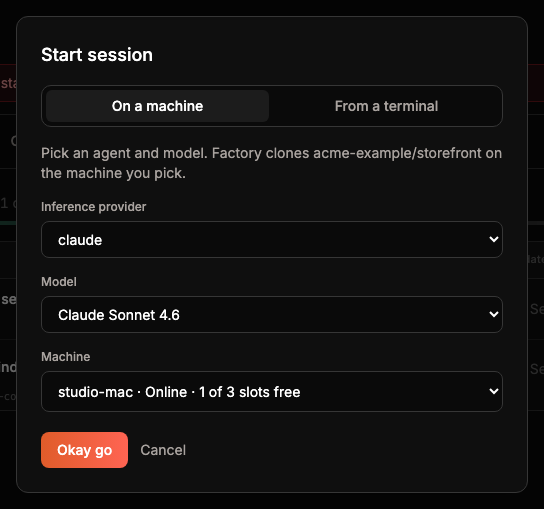
The project needs a GitHub repository first, because the session clones it. Without one the dialog says so and points you to Edit details on the project. Okay go stays greyed out until you pick an online machine with a free slot.
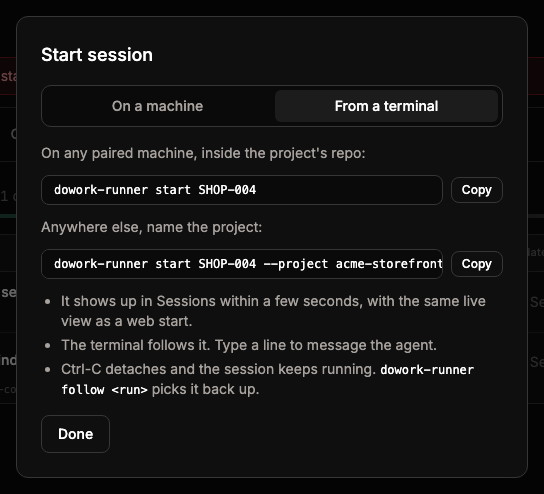
From a terminal
The From a terminal tab gives you the command instead. Run dowork-runner start SHOP-004 inside a clone of the project's repo on any paired machine, or add --project with the project's slug anywhere else. The session appears in Sessions within a few seconds and your terminal follows it. Machines covers the command in full.
The session page
Open a session from Sessions, from Open session on its Issue, or from the dashboard. The header shows the Issue's title and code (click the code to go to the Issue), where and when the session started, its status and its signal. The phase stepper marks the current phase.
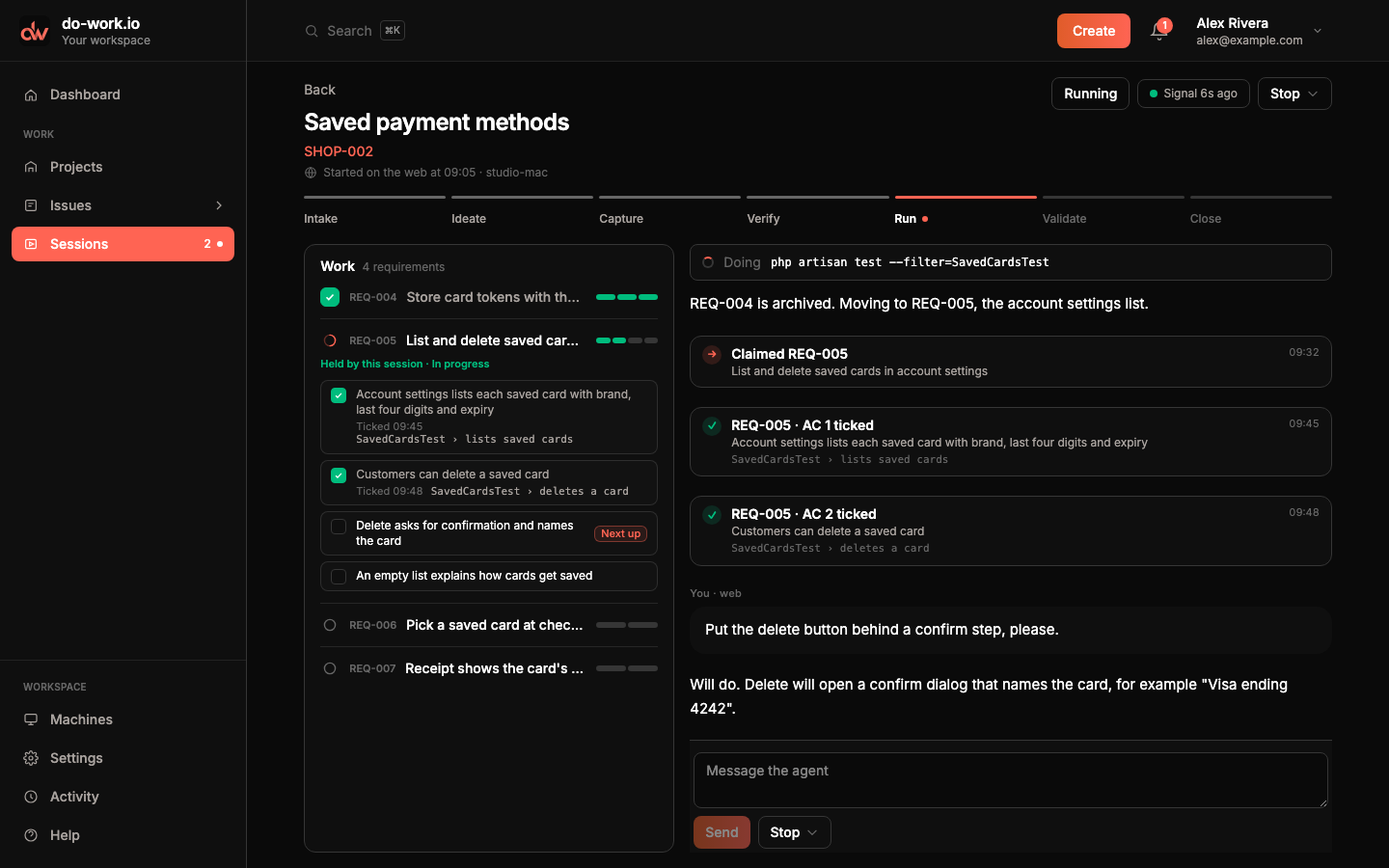
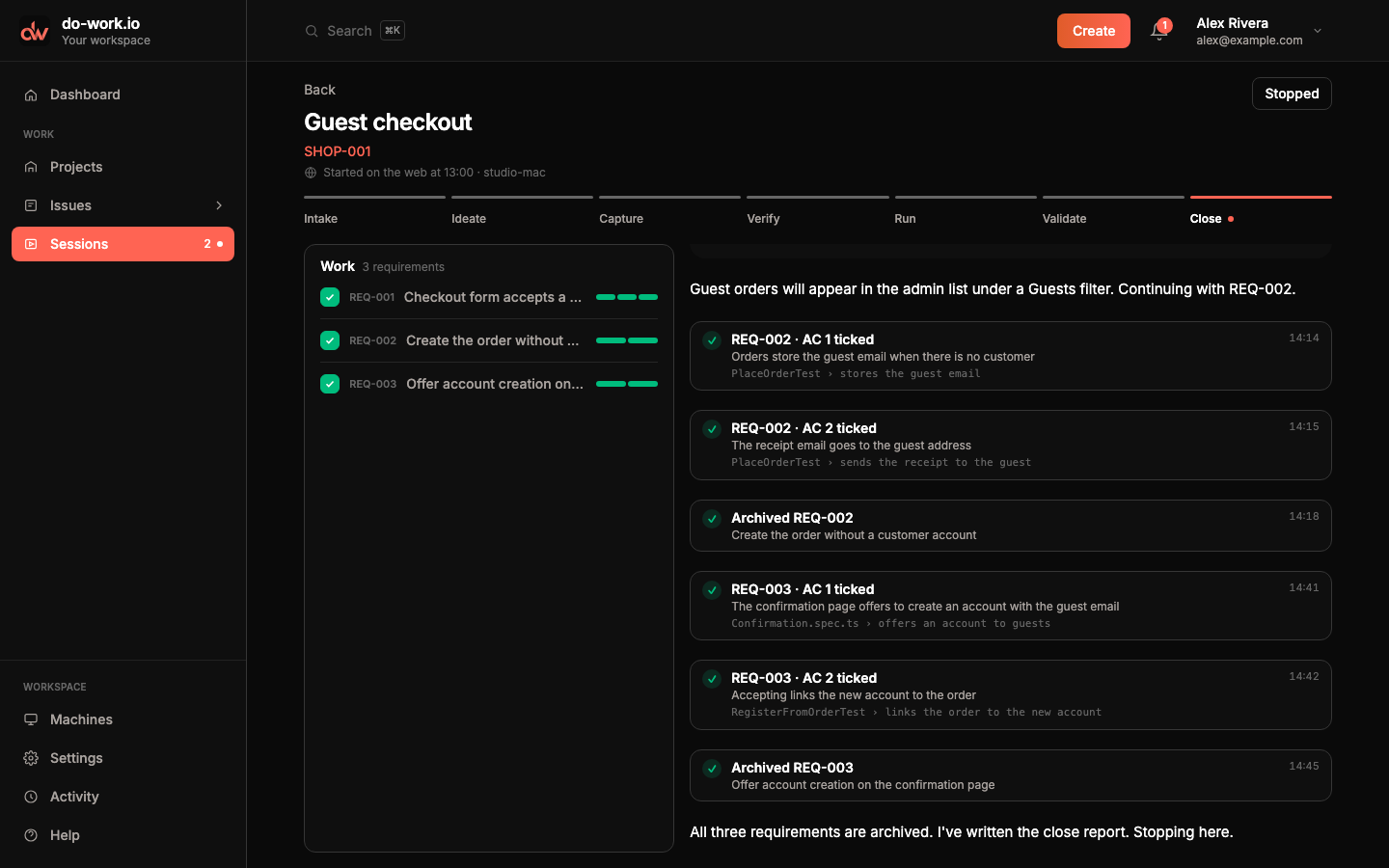
The Work panel lists the Issue's REQs with their criteria progress. The REQ this session holds says Held by this session and opens to show its criteria, with Next up on the first one left. Above the transcript, Doing shows the command the agent is running right now.
The transcript shows the agent's messages, the tools it used, and anything you sent, labelled "You · web" or "You · terminal". Tracker milestones sit between them in time order: Claimed REQ-005, REQ-005 · AC 1 ticked with the evidence, Archived REQ-004. The runner's opening prompt is hidden because nobody typed it.
Message the agent
Type in Message the agent and click Send. If the agent is still working on your last message, Send queues the new one until it's ready, and Send now interrupts the current round instead.
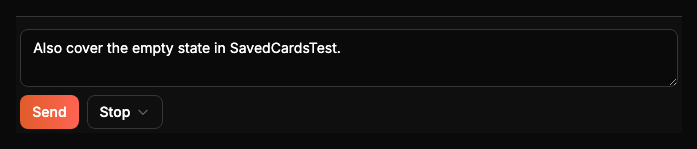
If the machine stops reporting for 90 seconds, sending turns off and the page says the machine hasn't checked in. It comes back when the machine does.
Answer a question
When the agent needs a decision it stops at a gate. The session page shows Waiting on you in the header and a Gate card with the question. Click one of the offered answers. When the agent offers no choices, type your answer and click Send answer. The session also shows as waiting on the dashboard, on the Issue and in Sessions, and you get a notification.
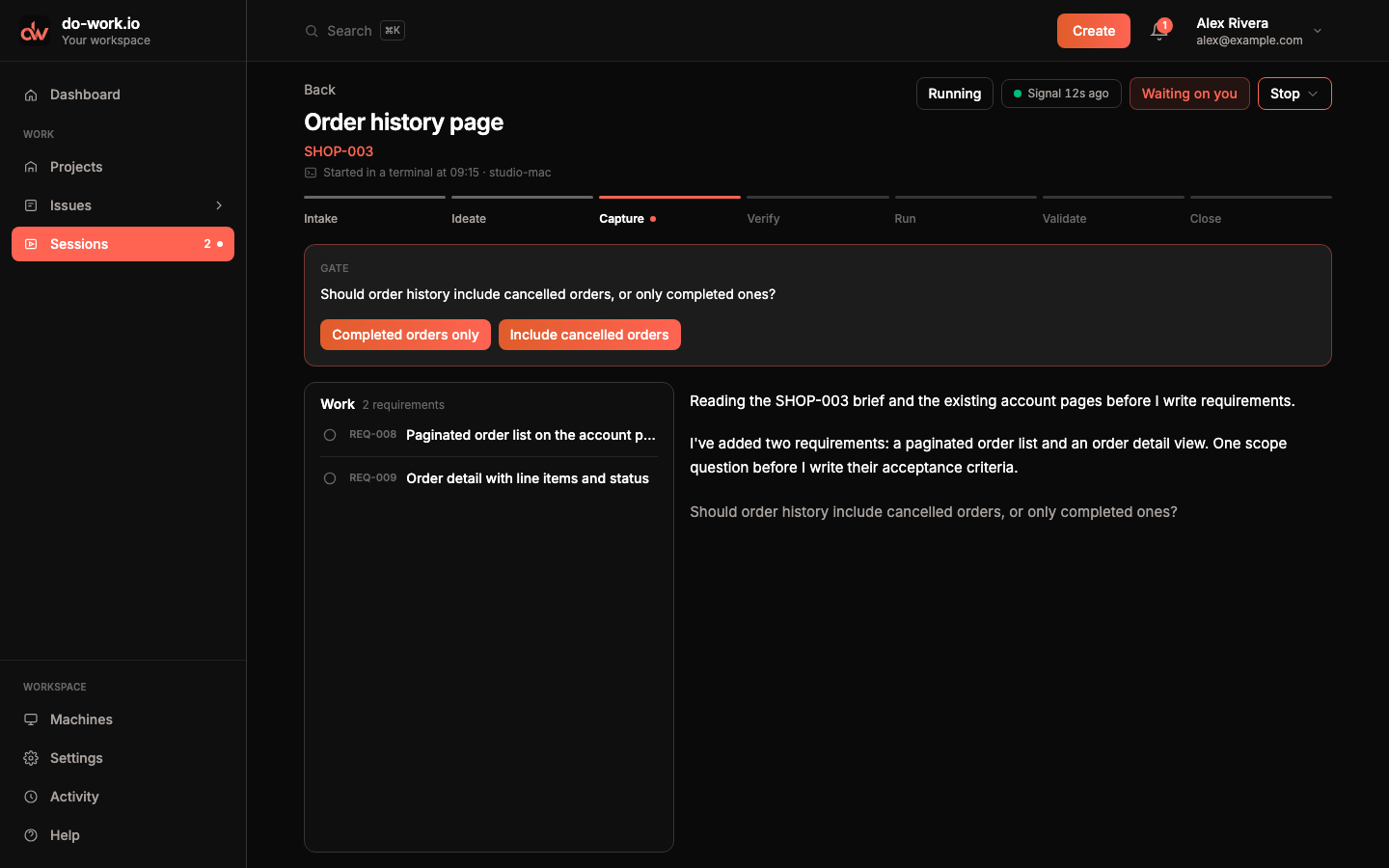
Your answer appears in the transcript as "Answered: …" and the agent carries on.
Stop a session
Click Stop for two choices. Finish REQ-005, then stop lets the session finish the REQ it holds and claim nothing new; it stops once that REQ is archived. The button then reads Stopping after REQ-005. Stop now kills the sandbox straight away, and unmerged work in its worktree is lost.
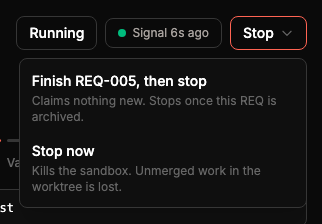
The same menu sits next to Send under the transcript and on the Issue's live session strip.
Finished sessions
A stopped session keeps its page. The Work panel shows the REQs it archived, and the transcript keeps every message, answer and milestone, so you can see what the agent did and in what order.
Failed sessions
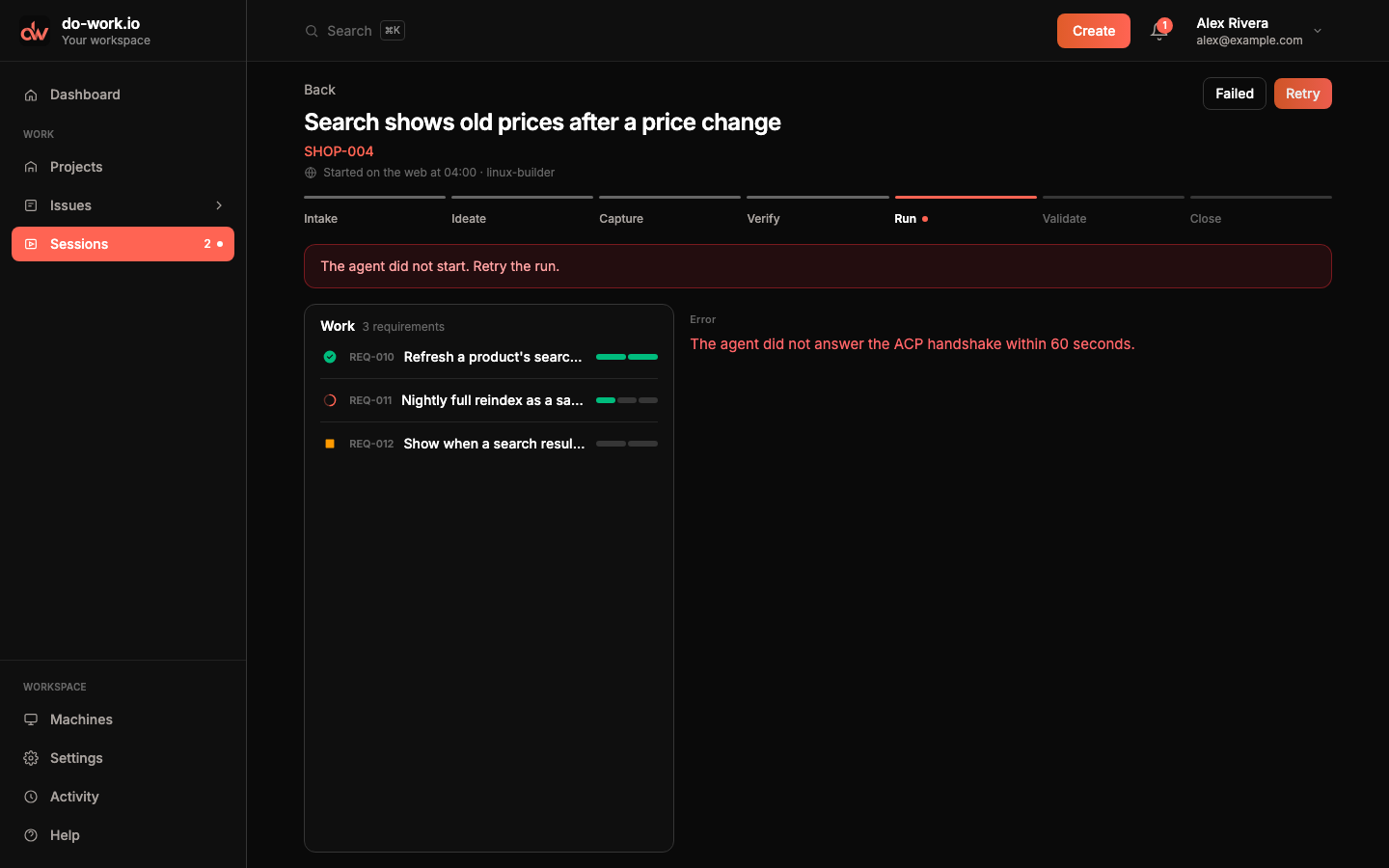
A failed session says why at the top, for example "The agent did not start. Retry the run." Retry starts a new session on the same Issue on an online machine, preferring the one it used last, and opens it.