Appearance
Requirements and acceptance criteria
A requirement (REQ) is one piece of an Issue that a single agent can claim and finish. REQs are numbered per project, REQ-001, REQ-002 and on, and a number is never reused. Each REQ has acceptance criteria that say what done means.
Usually an agent claims a REQ, ticks each criterion with evidence as it goes, marks the REQ done with a closure proof, and archives it. A claim is a lock. While one agent holds a REQ, no other agent can claim it, and REQs that touch the same files can't be claimed at the same time.
A REQ's status is Backlog, In progress, Stopped or Done. Claiming a backlog REQ moves it to In progress. Archived REQs show as Done and drop out of the active lists.
Requirements list
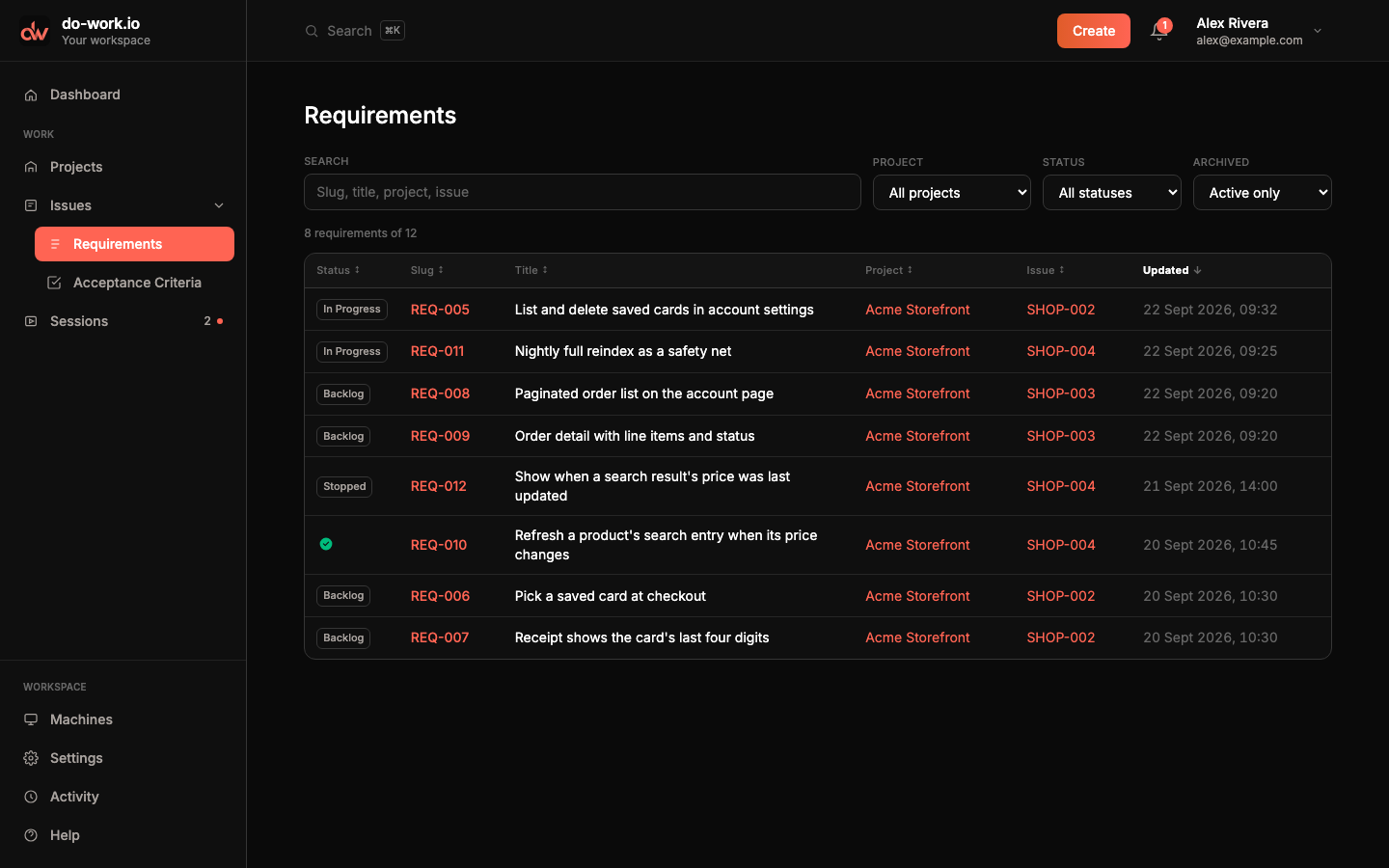
Requirements (under Issues in the sidebar) lists REQs from all your projects, most recently changed first. Filter with Search (slug, title, project or Issue), Project, Status and Archived. It starts on Active only; choose Archived only or Any to see finished work. Click a slug to open the REQ, or its project or Issue to jump there.
Create a requirement
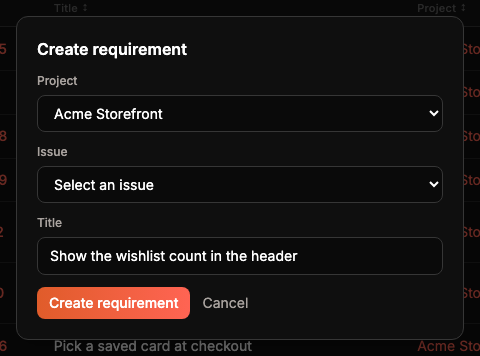
Click Create → Requirement in the header, or Add requirement on an Issue. Pick the Project and Issue, give it a Title, and click Create requirement. The app opens the new REQ so you can add criteria.
The requirement page
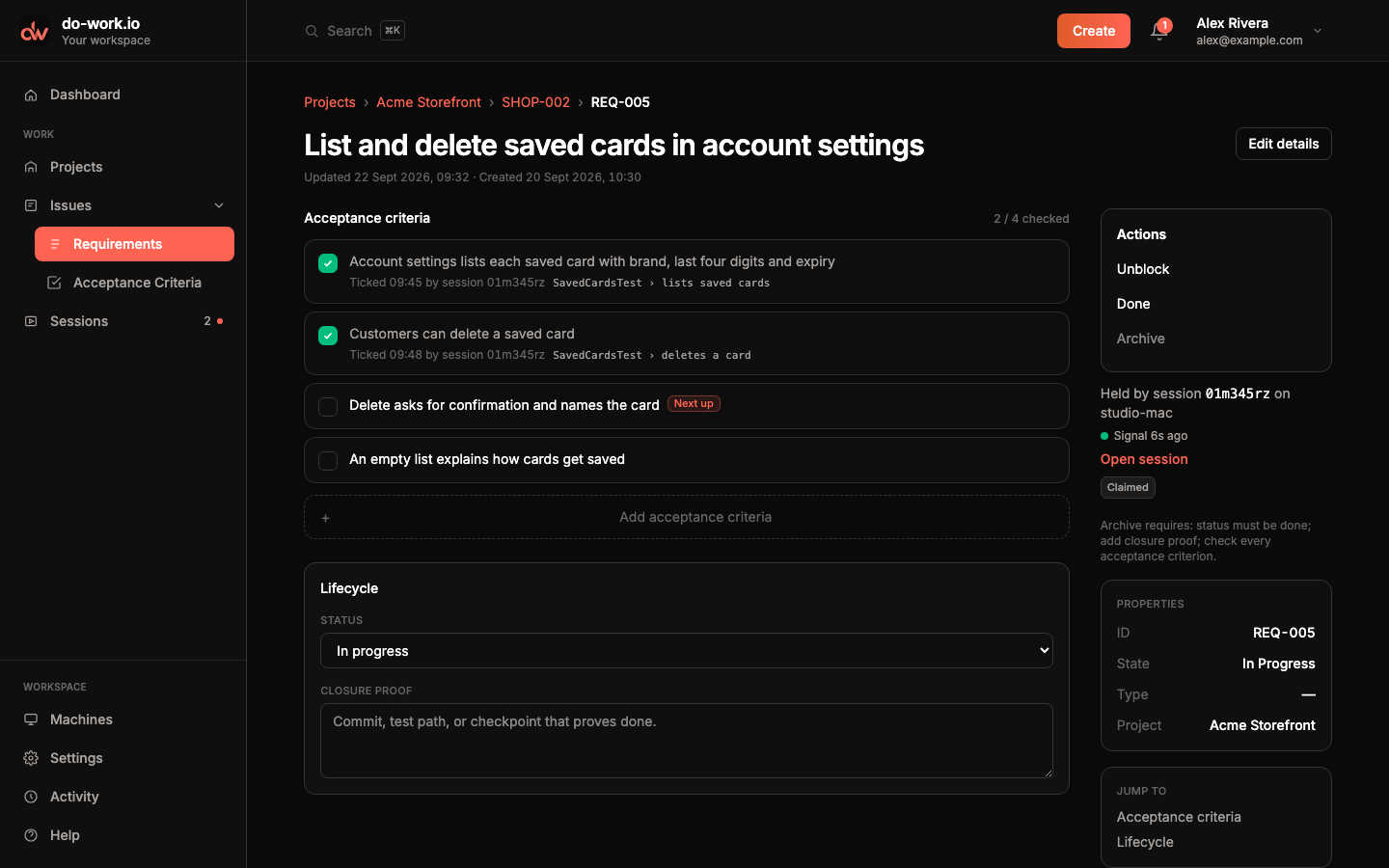
The breadcrumb shows the REQ's project and Issue. The page shows the title with when it was created and last updated, and Edit details to rename it. The main column has the acceptance criteria and the lifecycle controls. The right rail has actions, the claim and properties.
Acceptance criteria
Each criterion is one line. A ticked one shows when it was ticked, who ticked it (a session's short id, or "you"), and the evidence given, such as a test name. Next up marks the first unticked criterion. The count at the top reads "2 / 4 checked".
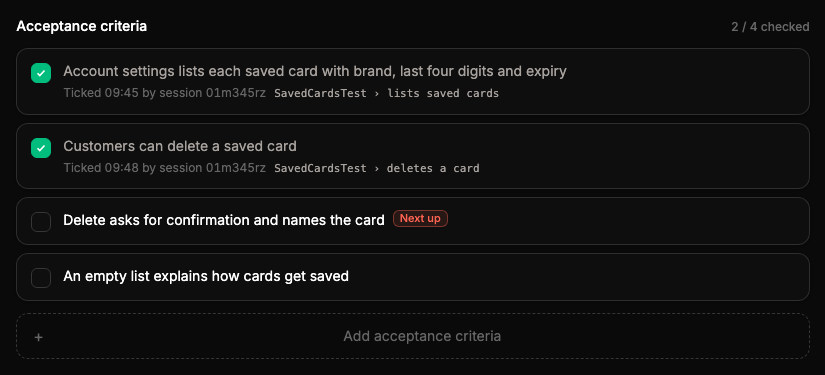
Click a criterion to tick or untick it yourself. To add one, type it into Add acceptance criteria and press Enter. Once a REQ is archived its criteria are frozen.
Status, closure proof and archive
The Lifecycle panel has the REQ's Status and its Closure proof. The status menu only offers moves the REQ can make: Backlog, In progress and Stopped can move to each other or to Done, and a Done REQ can only go back to In progress. The closure proof is a commit, test path or check that proves the work is done.
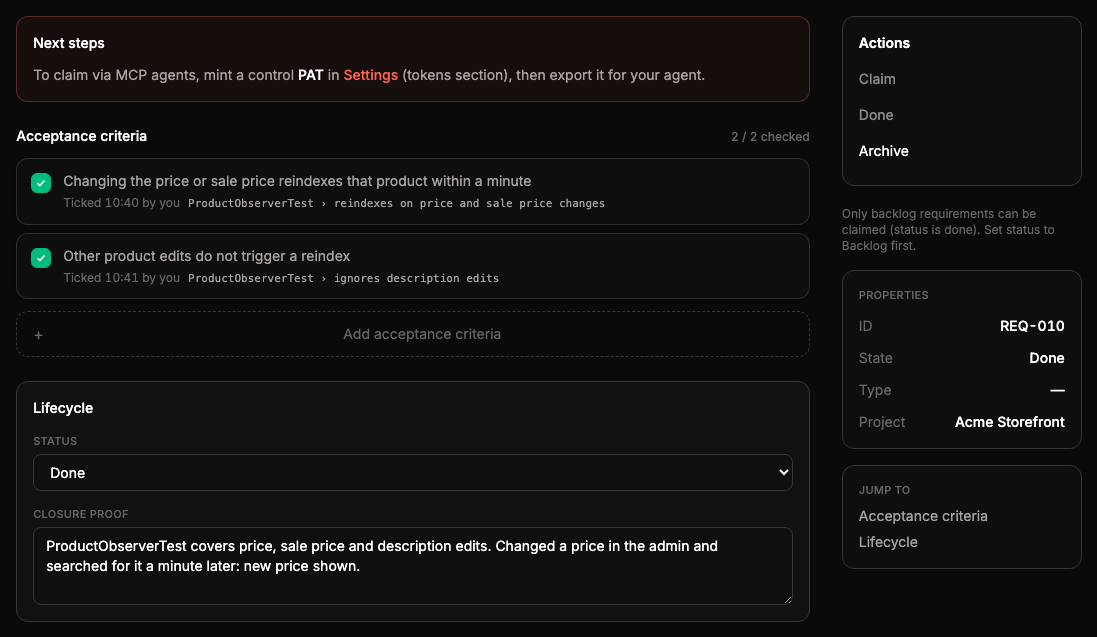
The Actions rail has Done, which marks the REQ done, and Archive. Archive needs three things: the status is Done, there is a closure proof, and it has at least one criterion and every criterion is ticked. Until then the rail says what is missing, for example "Archive requires: status must be done; add closure proof; check every acceptance criterion." Archive asks you to confirm, saves the closure proof you typed, and files the REQ away. Agents can't claim it after that, and the app can't undo it.
Claims
The rail shows who holds the REQ. A session's claim shows its short id, its machine, its signal and an Open session link. A claim made some other way, for example by the skill running on a laptop, shows the agent id. The badge says Claimed while the holder keeps sending heartbeats, and Stale once it has been quiet for 15 minutes.
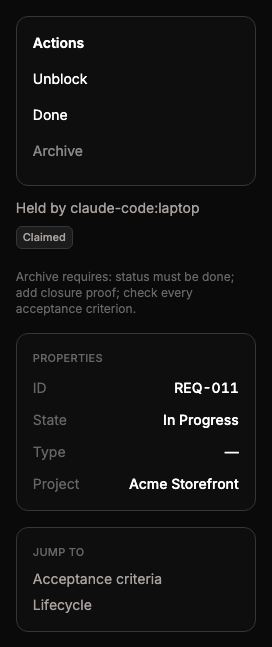
- Claim takes an unclaimed backlog REQ for yourself. It also takes over a stale claim. A REQ in any other status says to set it back to Backlog first.
- Unblock releases the current claim. A REQ that was in progress or stopped goes back to Backlog so another agent can pick it up.
Next steps
A REQ with no criteria, or that nobody holds, shows Next steps. It suggests adding criteria (Add criteria jumps to the field) and minting a control token in Settings so an agent can claim it over MCP.
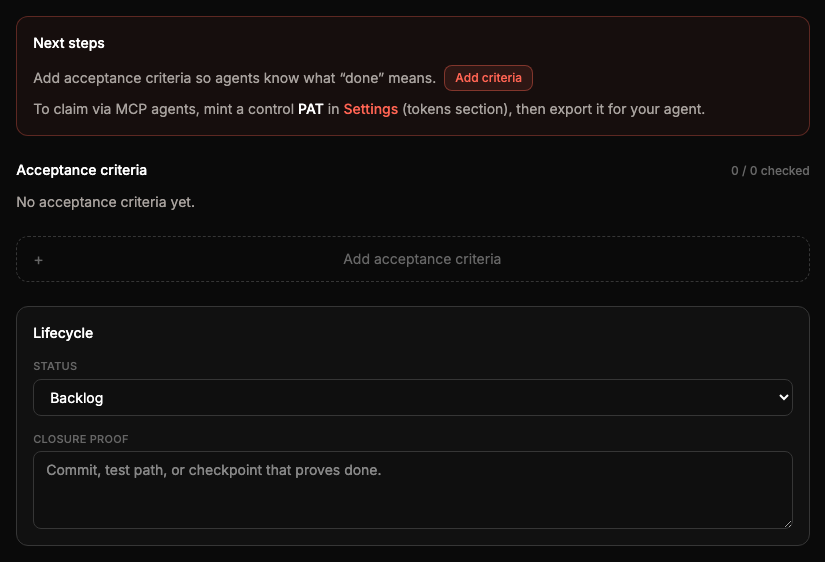
The rail's Properties list the REQ's ID, state, type and project, and Jump to scrolls to the criteria or the lifecycle panel.
Acceptance criteria list
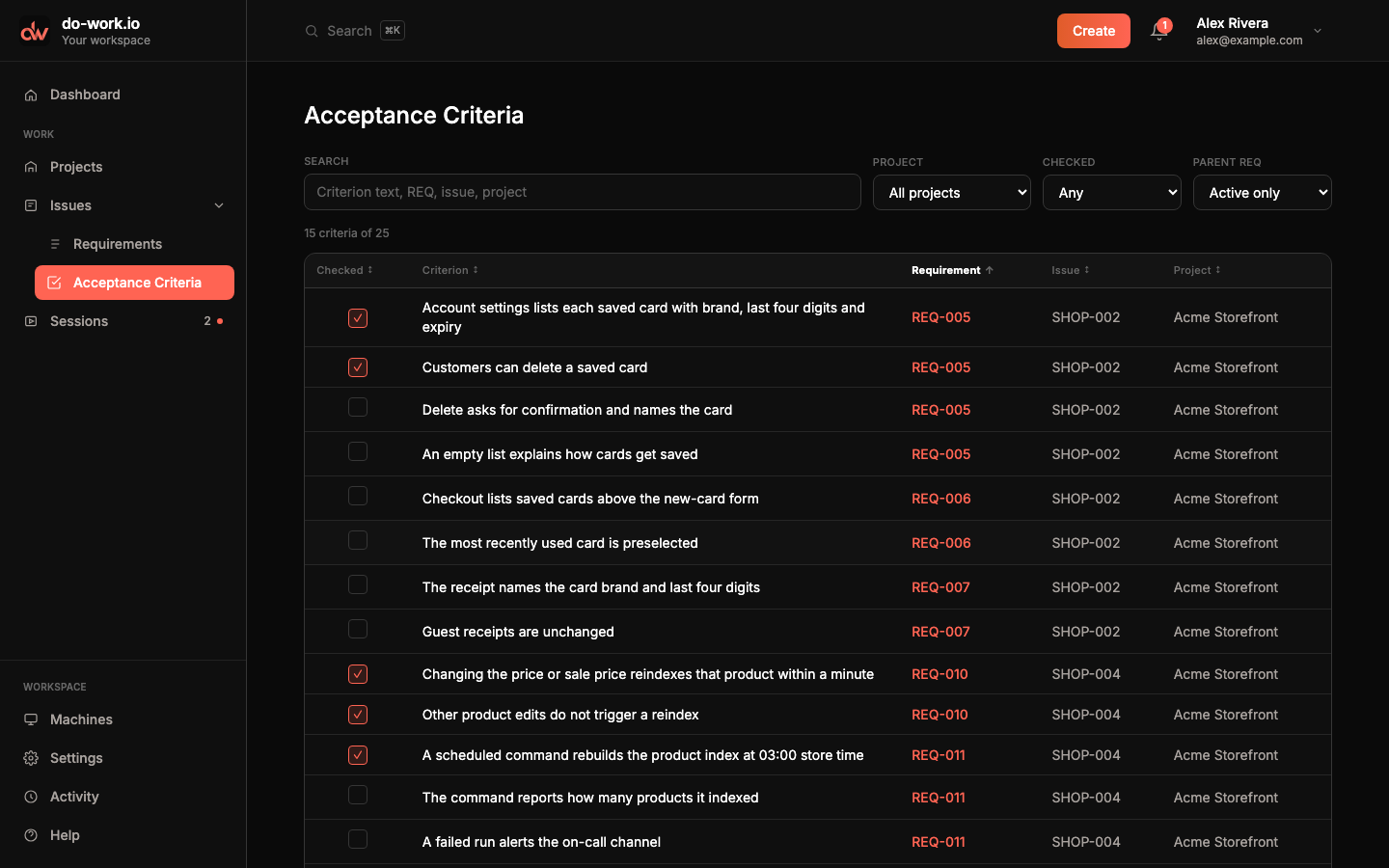
Acceptance Criteria (under Issues in the sidebar) lists every criterion across your projects with whether it is ticked, its REQ, its Issue and its project. Filter with Search, Project, Checked and Parent REQ, which starts on Active only. The list is for finding things. Click a criterion or its REQ to open the REQ, and tick it there.